Overview
Answering Machine Detection (AMD) lets administrators configure settings to identify whether a call has been answered by a human or an answering machine. New or modified AMD configurations are updated automatically in Readymode Starter and Readymode iQ. Using AMD, you can:
- View default AMD configurations
- View, create, and modify custom AMD configurations
Navigating Advanced Machine Detection
There are two functional areas on the AMD page:
- Machine Detection
- Advanced Machine Detection.
The Machine Detection area displays a list of existing configurations. After clicking to select a configuration, details are displayed in the Advanced Machine Detection area. To view the Advanced Machine Detection settings in Readymode iQ:
- In Readymode iQ, click Advanced > Advanced Machine Detection.
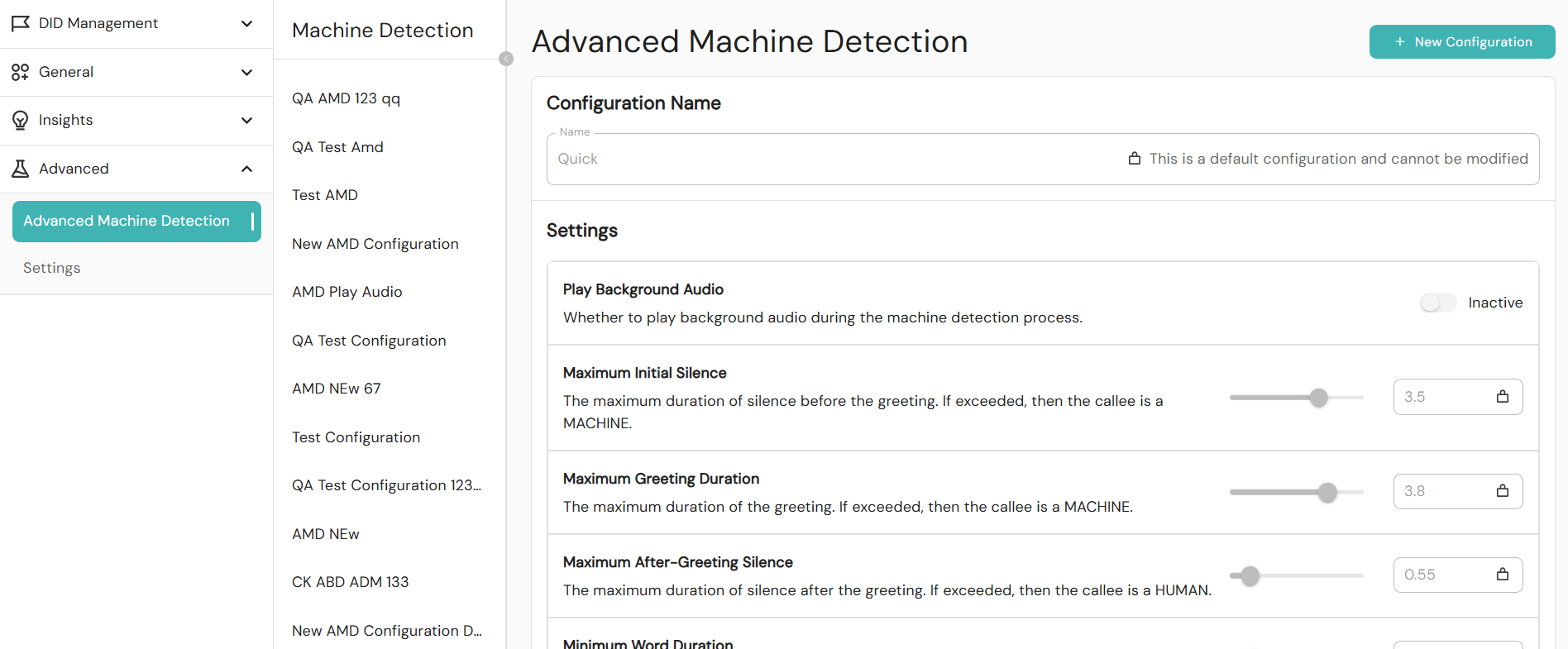
Machine Detection
A list of all the AMD configurations from the Readymode Starter is displayed in the Machine Detection list from oldest to most recently added. AMD configurations exist in the following types:
- Quick: When a call is answered, the machine detection algorithm does a quick check to assess whether a machine has answered a call. It will evaluate specific speech patterns for 3 seconds before deciding whether to patch what it hears through to an agent.
- Rigorous: When a call is answered, the machine detection algorithm will do a more thorough check to assess whether a machine has answered a call. It will evaluate speech patterns for 7 seconds. This option should be used if you want to absolutely minimize the chance of a machine-answered call being passed to an agent.
Custom Configurations
Administrators can add custom configurations. However, it is recommended to limit the number of configurations to a manageable number for your team. To add a new configuration:
- In Readymode iQ, click Advanced > Advanced Machine Detection.
- Click + New Configuration.
- Enter the values for your new configuration.
- Click Save.
Your new configuration will appear at the bottom of the Machine Detection list.
Advanced Machine Detection
The Advanced Machine Detection area shows details for an AMD configuration, including the Configuration Name and Settings sections.
Configuration Name Section
Default Configurations
The names of default configurations, like Quick and Rigorous, can not be modified. Custom configuration names may be modified. For both new and existing custom configurations, the Configuration Name field is mandatory and must be unique.
Settings Section
Default configurations, although having the same settings options as custom configurations, can not be modified. The slider will be grayed out and locked. Administrators may modify various settings for custom configurations.
Additional UI Elements and Functions for AMD Configurations
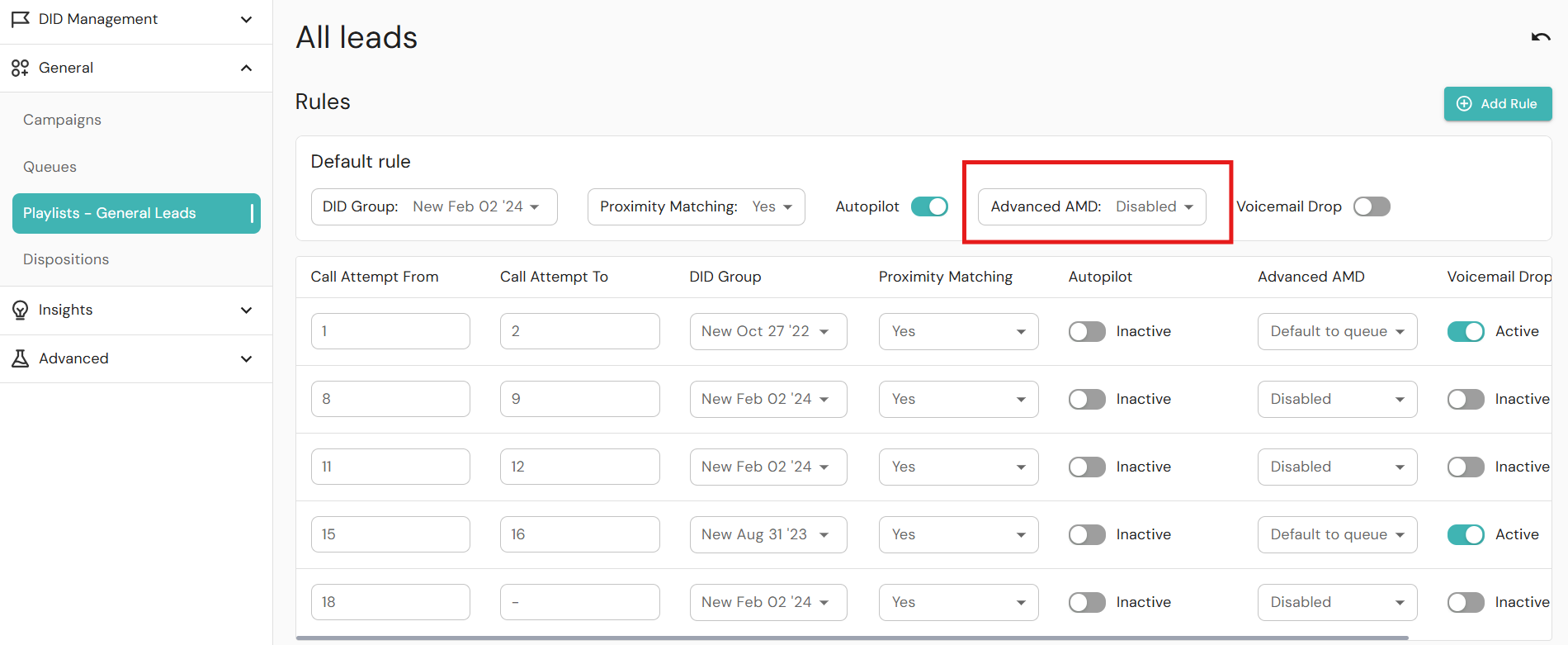
When saving a configuration, if the Configuration Name field is either blank or matches another configuration, an error message is displayed at the bottom of the Advanced Machine Detection area. Renaming the configuration to a unique name will clear the error. After saving a configuration, it will appear in the Advanced AMD dropdown lists in Playlists. Modified configurations are updated in real time.
Was this article helpful?
That’s Great!
Thank you for your feedback
Sorry! We couldn't be helpful
Thank you for your feedback
Feedback sent
We appreciate your effort and will try to fix the article