Overview
Playlists let administrators segment and prioritize the leads in your General Leads Queue to control how they are dialed.
Key features and functions of Playlists include:
- Members Assignment: Assign members to a playlist to ensure that specific agents are handling the defined segment of leads.
- Segmentation: Use Groups to filter/isolate leads based on specific criteria, such as location, campaign, or call count. You can also explicitly exclude leads based on these filters.
- Prioritization: Use the Priority settings from one to nine to determine the order in which the dialer focuses on the playlist.
- Call Frequency: Organize leads into Groups with different weights to determine which leads will be dialed more frequently.
- Cadencing: Define and configure how call cadences behave. Playlists use a default rule and custom rules to define call attempts made by a campaign.
Navigating Playlists
In the Playlist section of Readymode iQ you can review your company’s playlists and create, modify, and delete rules. To view all current playlists:
- In Readymode iQ, click General > Playlist - General Leads.
Playlist table
Playlists are sorted alphabetically by default, but the order can be adjusted by clicking the Name, Priority, or Queue sections. Clicking again will set in descending or ascending order.
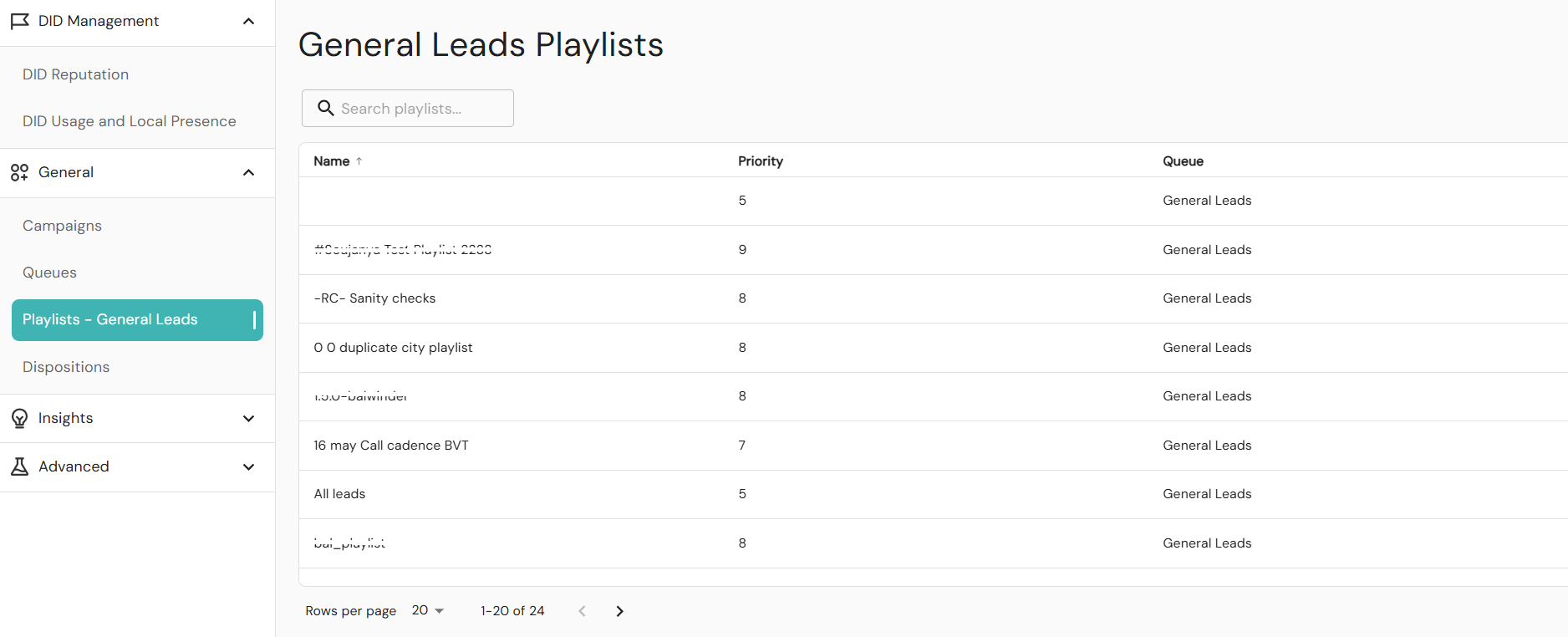
Playlists named “null” will be grouped and shown as “No Name” in the table. To prevent this, always add a name to a playlist.
The search box above the playlist table allows users to quickly search for playlists by name. By default, 20 rows are displayed per page. This can be adjusted using the dropdown menu, with options ranging from 20, 50, or 100 rows. If you navigate away from the page and return, the rows per page setting will reset to the default of 20.
Playlist details
Click any playlist from the playlist table to open its details. Details contain a breakdown of the playlist into configurable features. The tabs on the details page show management features to configure and customize the playlist. The available management tabs in a playlist are:
Settings
The Settings tab is the default tab when opening the detail page, where you can find and configure the basic playlist settings:
- Playlist name: A name is a required text input and must be unique within the General Leads Playlist list in Readymode iQ. It allows admin users to give more descriptive information for the playlist. If a playlist name is already in use, an error icon will be displayed, and the Save Settings button will be disabled until the error is corrected. All names cannot exceed 64 characters, cannot be an empty string, or contain only spaces.
- Playlist priority: The priority is ranked from one to nine, one being the lowest priority and nine the highest priority. A higher priority playlist will get more attention from the dialer.
- Dialer speed: A dropdown selector on the supported speed options. Inherently, a setting in the General Leads Queue, this allows an administrator to customize a different dialer speed to use. If no customization is required, the option “Default to Queue” will set the playlist to use the queue setting.
- Machine Detection: Machine Detection is a dropdown selector on the supported machine detection settings. This setting is only available when the General Leads Queue speed setting is set to one of the Background Dialing options. Similar to Dialer Speed, the setting here in the playlist is to allow an administrator to customize a different machine detection option to use. If no customization is required, the option “Default to Queue” will set the playlist to use the queue setting.
After configuring your settings, click on the Save Settings button at the bottom right of the page.
Groups
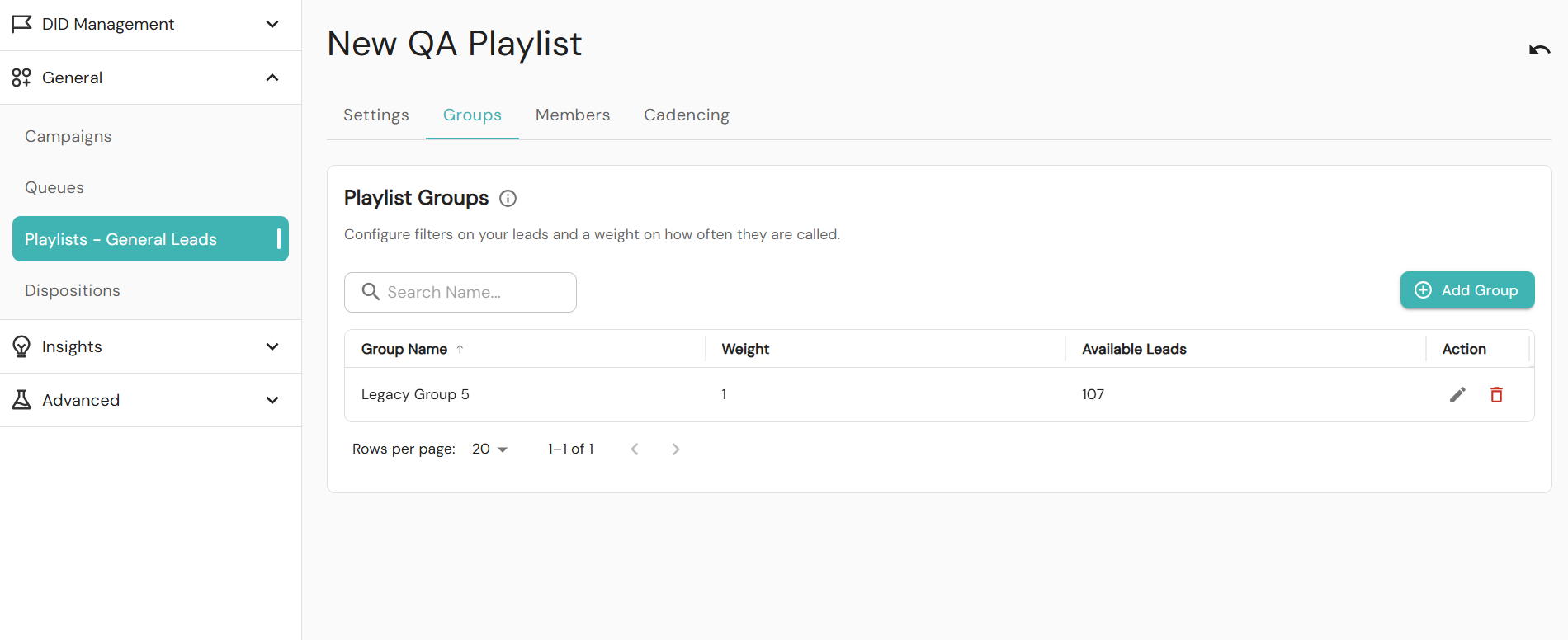
The Groups tab is where the playlist groups for a playlist are shown. Playlist group gives admin users the power to segment or filter the leads, as well as determine how frequently the leads from the groups are dialed relative to one another. Playlist groups are listed in a table with the same set of discovery tools built in (searching, sorting), delivering a consistent, streamlined experience in Readymode iQ.
The playlist group table shows the following information:
- Group name: The name of the playlist group. Users are encouraged to choose a name that clearly explains what type of leads are included. For example, “California - Low Call Count” or“East Coast - High Priority”.
- Weight: The weight controls how often leads from this group are selected compared to other groups in the same playlist.
- A higher number means leads in this group are picked more often.
- A lower number means they are picked less often.
- If two groups exist and one has a higher weight, it will receive more attention.
- Available Leads: The number of leads a group contains, with the filter conditions configured in the group.
- Actions: Where the icon buttons to initiate playlist group workflows are found.
- Pencil icon - Edit a playlist group
- Trash bin icon - Delete a playlist group
Editing a Playlist Group
Click the pencil icon button to edit the playlist group:
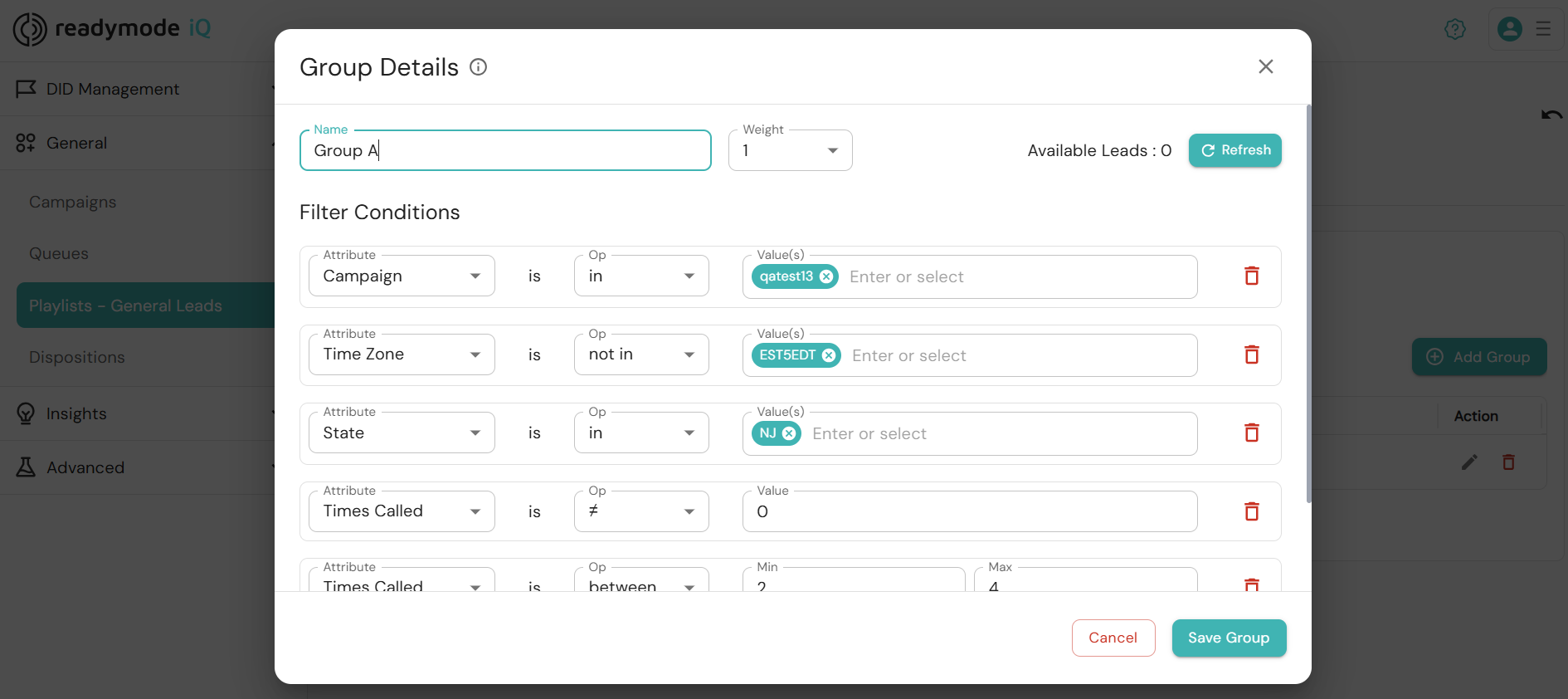
- Group Name & Weight- the name is a unique identifier for your group, and the weight denotes how often a lead is dialed. The higher the lead number, the more often it is contacted.
- Available Leads: The available leads based on the current saved group settings.
- Filter Conditions/Rules: Defines which leads belong in the group and exists in three parts:
- What you want to filter by (Example: State, Campaign, Time Zone, Times called)
- How you want to match it (Example: is, is not, between)
- The value(s) (Example: CA, 0, specific campaign name, 1-3)
Depending on which filter you choose:
- Some conditions allow selecting multiple values. For example, selecting multiple states.
- Some rules allow only one value. For example, Times Called = 5.
- If you choose “between” or “not between”, you must enter both a starting and ending number.
To save your changes, click Save Group.
Adding a Condition
To add a new condition:
- Click the Add (+) button at the bottom.
- Choose what you want to filter by.
- Select or enter the value(s).
- Click Save Group.
The new condition will be added below. To abandon your changes, click Revert.
Editing a Condition
To update a condition:
- Click inside any field in the existing condition
- Update the input selection
- Make sure all parts of the rule are completed.
- Click Save Group.
If a condition is incomplete, you will see a warning message and will not be able to save your changes until the condition is complete.
Removing a Condition
To remove a condition:
- Click the trash bin icon on the right side of the condition.
- Click Remove.
Requesting available leads update
With valid changes made in the playlist group details, the Refresh button next to the Available Leads number will be enabled. Click the Refresh button to get an updated count of available leads using the new filter conditions. When complete, the number of available leads will be updated, and the Refresh button will be disabled until further changes are made.
Create/Add a Playlist Group
Use the Add Group button at the top of the playlist groups table to create a new group. The same playlist editing overlay will be shown:
- Placeholder values for Group Name are shown, requesting a new name to be provided there.
- Weight is preset to 1
- Available Leads information will not be available, and the Refresh button is disabled until the group has valid conditions added.
- One filter condition with placeholder values is available
You may provide your inputs to the playlist group the same way as you make edits to the playlist group.
Delete a Playlist Group
To delete a playlist group:
- Navigate to the Playlist Groups tab and locate the playlist group that you need to delete.
- Click the trash bin icon for the group.
- Click Remove to confirm the change and have the group deleted from the playlist, or Cancel to go back to the Playlist Group tab.
There is a checkbox option after confirmation to bypass the confirmation step in the future. If selected, future playlist group removal will take effect immediately after clicking the trash bin icon. If you need to reset this bypass, go to the User Settings in the top menu and use the Reset to Default button in the Confirmation Dialogs setting to reset.
Members
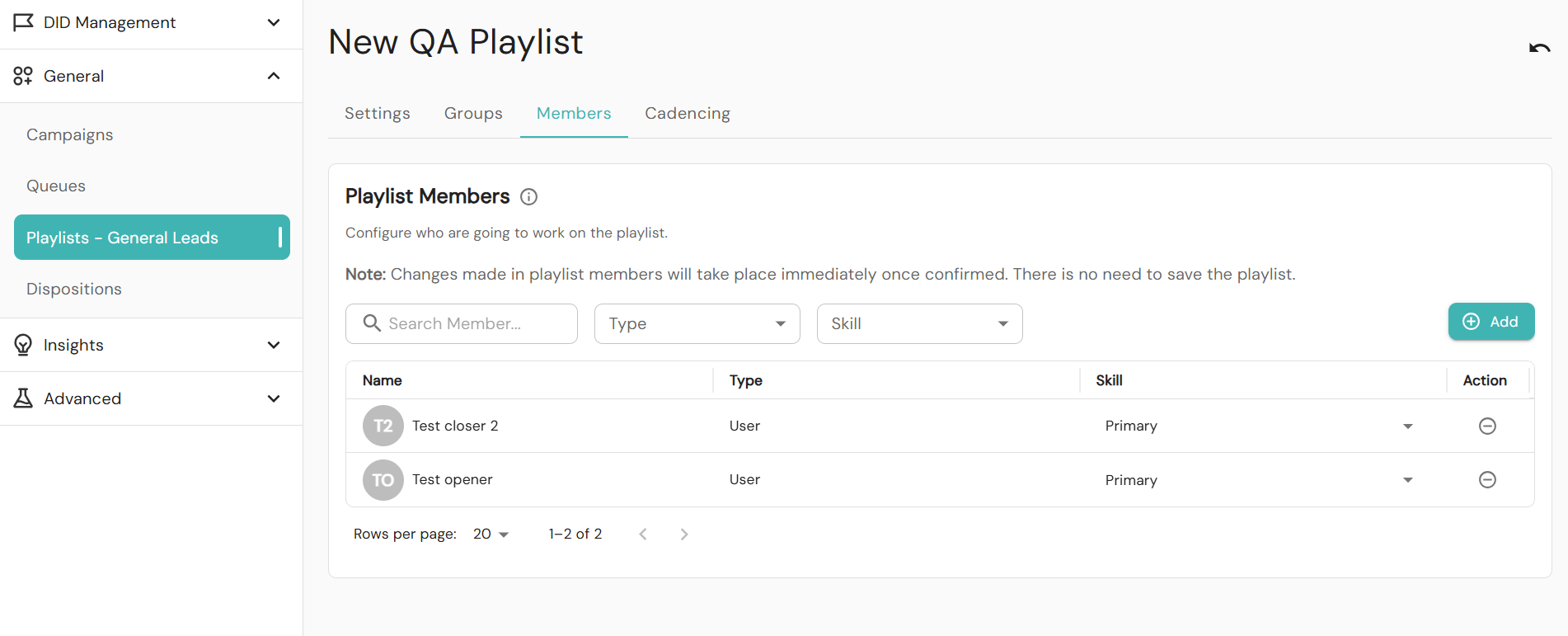
Playlist members management is the other main feature of playlist management. The Playlist Members tab shows the list of members, including users, groups, and folder groups that are assigned to work on the playlist. Similar to groups, playlist members are listed in a table with the same set of discovery tools built-in like searching, sorting, and filtering.
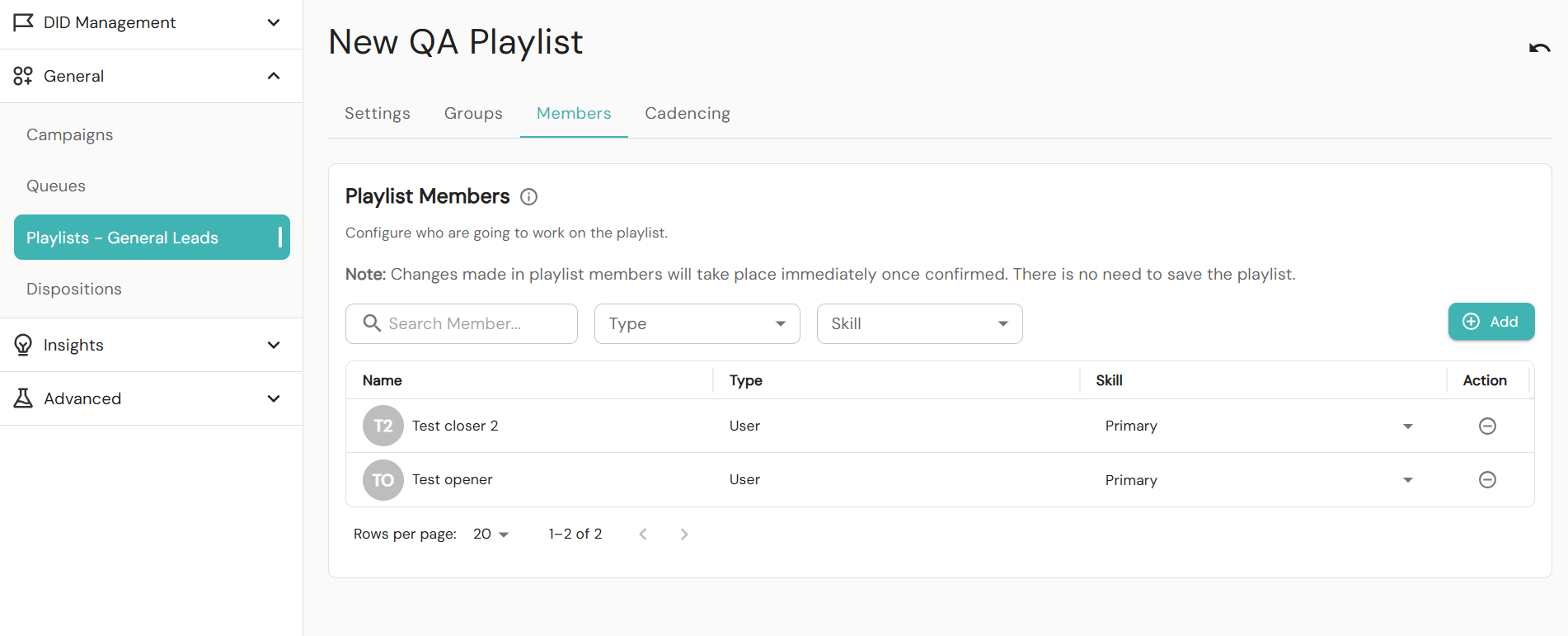
The playlist members table shows the following information:
The name of the member with an avatar showing the type of the member or the abbreviated name of the user.
Type:
- Individual User
- User Group
- User Folder
Skill:
- Primary: The first group of members to receive calls
- Backup: Backup members will receive calls if no Primary members are available.
- Tertiary: Tertiary members will receive calls if no Primary and Backup members are available.
A playlist requires at least one Primary member to work correctly. Making changes that lead to no Primary members is not permitted, and an error message will be shown.
Adding members
To add existing members to the playlist:
- Click the Add button above the members table in the Members tab.
- Select a member to add from the dropdown in the overlay.
- Click the Done button to confirm the selection.
The members list will be updated with the newly selected members along with a successful message. All new members’ skills are set to Primary.
Removing a member
To remove a member from the playlist:
- Locate the member from the member list.
- Click the minus icon on that member.
Updating a member’s skill
A member’s skill defines which member will be assigned to which playlist. The primary member will be responsible for the playlist, and failing that it will fall to the backup, and finally the tertiary. To update a member’s skill:
- Locate the member from the member list
- Click the member’s skill to expand the drop down menu.
- Select from Primary, Backup, or Tertiary.
Cadencing
To use the cadencing feature, you must first define a cadence of pre-recorded messages in Readymode iQ and assign it to a playlist. Due to FTC regulations regarding the use of pre-recorded voice, cadence, and pre-recorded message functionality, these features are not installed by default. Please contact your CSM or [email protected] for more information.
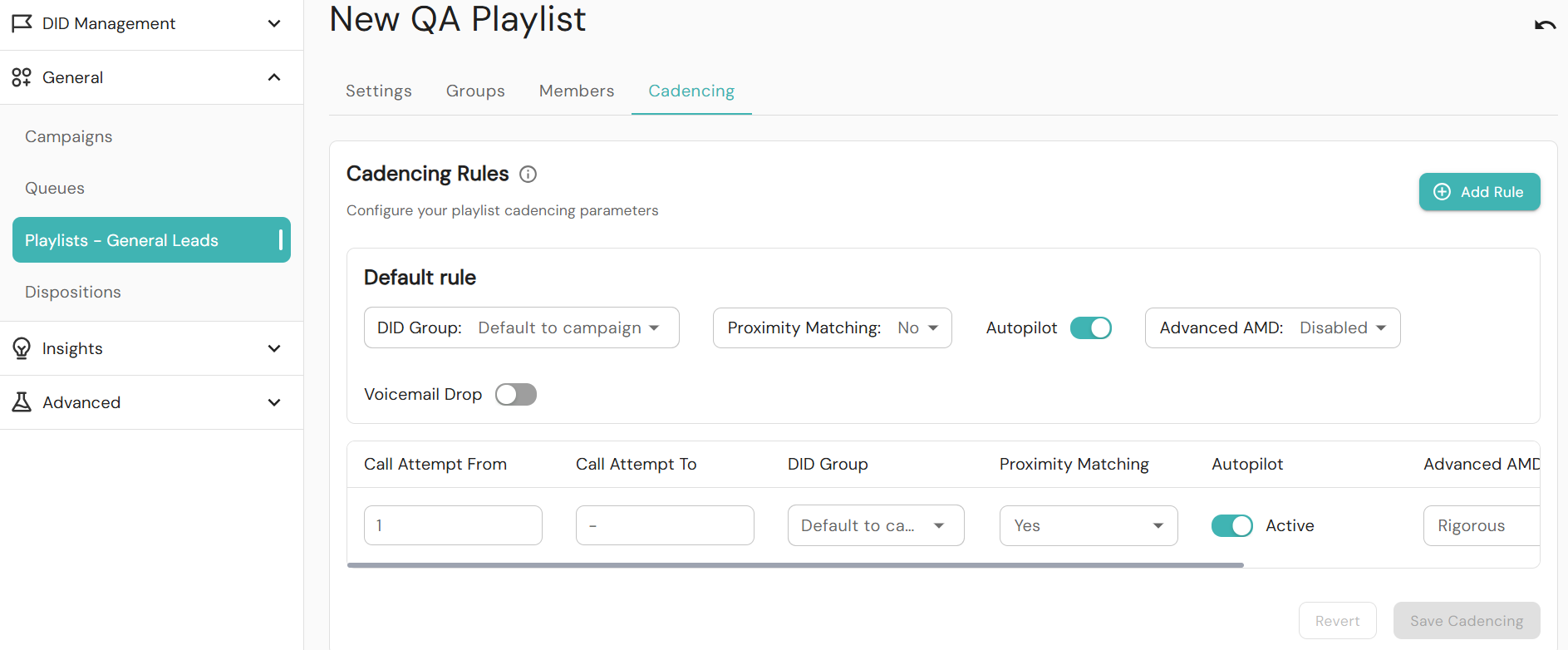
Clicking on a playlist in the table opens the details page. You can configure two types of rules in your playlist.
- A default rule
- Custom rules
Custom rules will override the default rule set for the playlist. Administrators must first configure the default rule, and can then create up to 10 custom rules as needed.
Default Rule
The default rule for Playlists is changed by using the Default rule table or contacting Readymode for assistance. For more information, contact [email protected]. The following parameters can be set in your custom rule:
- DID Group: The group of phone numbers to which the rule applies. Default to campaign is the default selection and will match the value configured in Readymode Starter. You can select from the dropdown lists all campaigns loaded into Readymode Starter and Readymode iQ to configure the playlist to use a specific campaign.
- Proximity Matching: The default value is configured in Readymode Starter, shown as Default to System. You can also explicitly select Yes or No to specify whether to use proximity matching for this playlist.
- Autopilot: Select whether to use Autopilot Smart Mode to select phone numbers for this playlist. By default, the toggle is turned off. For more information, see Autopilot.
- Advanced Answering Machine Detection (AMD):
- Default to queue is most commonly used and matches the values in Readymode Starter.
- Disabled: Disables AMD for the playlist. Note that AMD is required for voicemail drop.
- Quick: Current default in Readymode Starter. The machine detection algorithm will do a quick check to see whether a machine has answered a call. It will evaluate specific speech patterns for 3 seconds only before deciding whether to patch what it hears through to an agent or not.
- Rigorous: The machine detection algorithm will do a more thorough check to see whether a machine has answered a call. It will evaluate speech patterns for seven seconds. This option should be used if the client wants to absolutely minimize the chance of a machine-answered call being passed to an agent.
- Voicemail Drop: If the voicemail drop toggle is switched On, it allows a voicemail to be left on a person’s phone. If the voicemail drop toggle is set to Off, no voicemail will be left. This is useful if you wish to temporarily suspend voicemail drops for some reason. For example, for a particular DID group. The default position is Off.
Custom Rules
In addition to the default rule, administrators can set rules for calls that will override the default rule. The parameters for custom rules are similar to those for the default rule. Additional parameters for custom rules are Call Attempt From and Call Attempt To, which define the range of call attempts where the custom rule is active. The call attempt parameters must follow this logic:
- Call Attempt To can be of the same value or greater than Call Attempt From.
- The values for Call Attempt From and Call Attempt To should be unique per custom rule and should not overlap.
- To set a custom rule for a first-call attempt, set Call Attempt From to 1.
- When Call Attempt From is set to more than one, the first call attempts will use the default rule until the call attempt defined by Call Attempt From.
- An administrator can leave Call Attempt To blank, indicating the value is anything above the corresponding Call Attempt From. When this is true, the rule is considered the last rule to apply, regardless of row position.
Configuring Custom Rules
- In Readymode iQ, click General > Playlists.
- Enter the Call Attempts From and Call Attempts to add values for your rule.
- Set DID Group, Proximity Matching, Autopilot, Advanced AMD, and Voicemail Drop values.
- Click Save.
To add, delete, or duplicate a custom rule, use the tools at the end of the row on your custom rule:
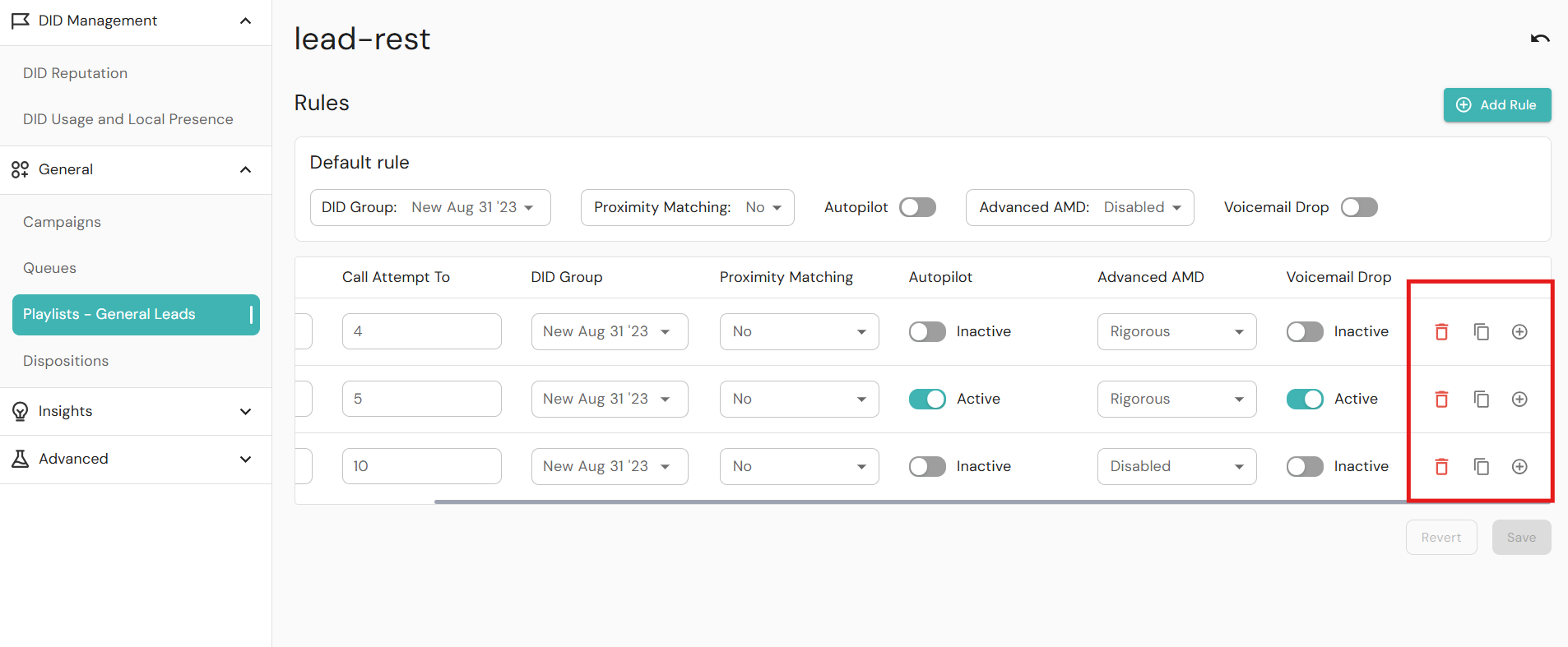
- Delete/Remove- Delete the specific row for the selected custom rule.
- Duplicate Row- The custom rule is duplicated and added below.
- Add Rule- Adds a new custom rule just below the custom rule where the add button was selected.
Was this article helpful?
That’s Great!
Thank you for your feedback
Sorry! We couldn't be helpful
Thank you for your feedback
Feedback sent
We appreciate your effort and will try to fix the article