Overview
Dispositions improve DID call management by enabling administrators to specify post-call actions. Dispositions can trigger multiple follow-up actions, including:
- Schedule a callback.
- Leave a pre-recorded message.
- Create, modify, and delete rules around how follow-up calls are managed in different scenarios, for example:
- Specifying if and when a lead should be deleted from the call list.
- Specifying the conditions for follow-up actions after an action has been completed.
Navigating Dispositions
To view the list of dispositions:
- In Readymode iQ, navigate to General > Dispositions.
Dispositions Table
All dispositions in Readymode Starter are available in the Dispositions table in Readymode iQ, but only dispositions set as Active are displayed by default and are sorted alphabetically in ascending order. To see all available dispositions, expand the Status drop-down to select from Active, Inactive, or both.
Use the search field to find specific dispositions. Enter a name or partial string and press Enter to display matching disposition names. Dispositions labelled null in Readymode Starter will be displayed and grouped as No Name in Readymode iQ. Add a name to all dispositions in Readymode Starter for names to display correctly in Readymode iQ. Click Name to reverse the list in descending order.
Disposition Details Page
Click a disposition in the table to open its details page. The details page of the disposition includes:
- Disposition options
- Rules
Disposition Options
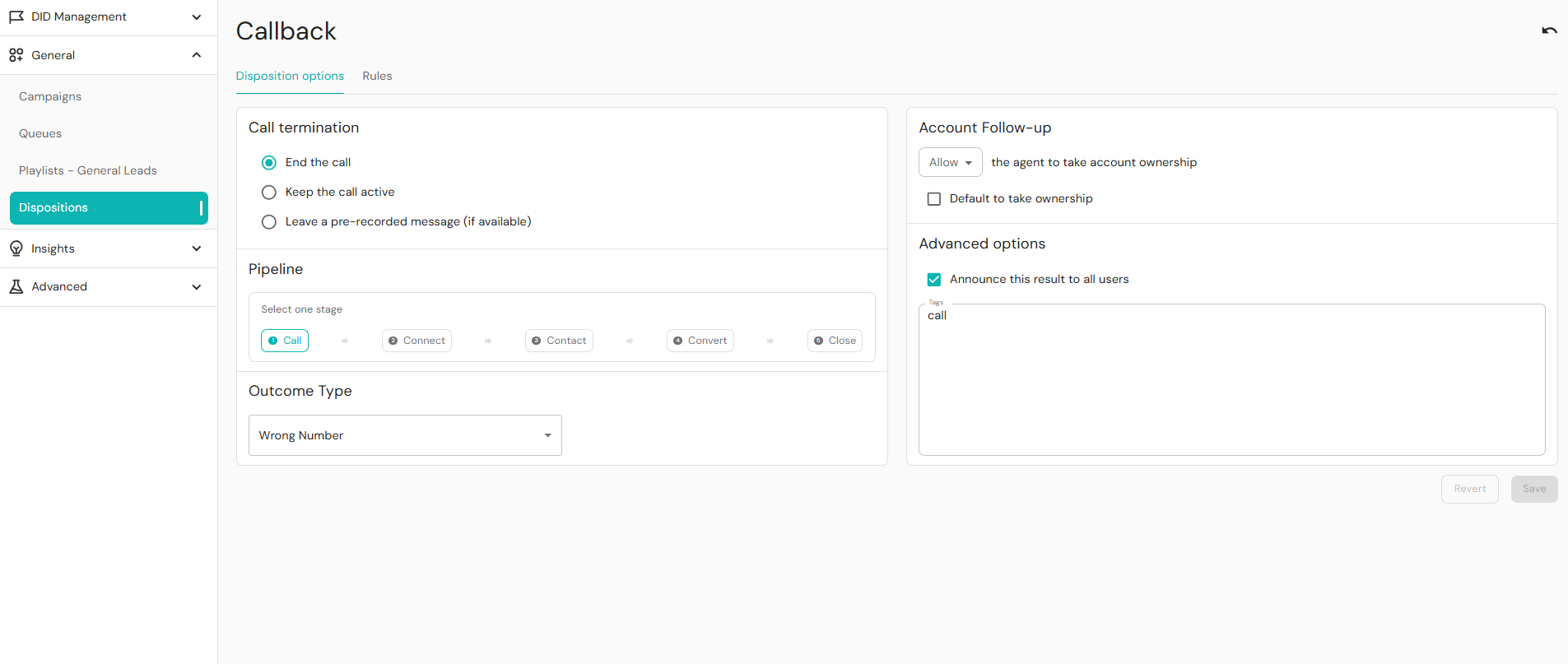
In the disposition options subsection, administrators can specify the action to take after a call is terminated, the next action in the pipeline, whether the agent should take responsibility for the account, and the notification to send to client users. Below is a table of disposition options.
To save all changes to your disposition, click Save. Failing to save your changes will result in all changes being lost. If you choose to revert your changes, you will be asked to confirm your selection.
Rules
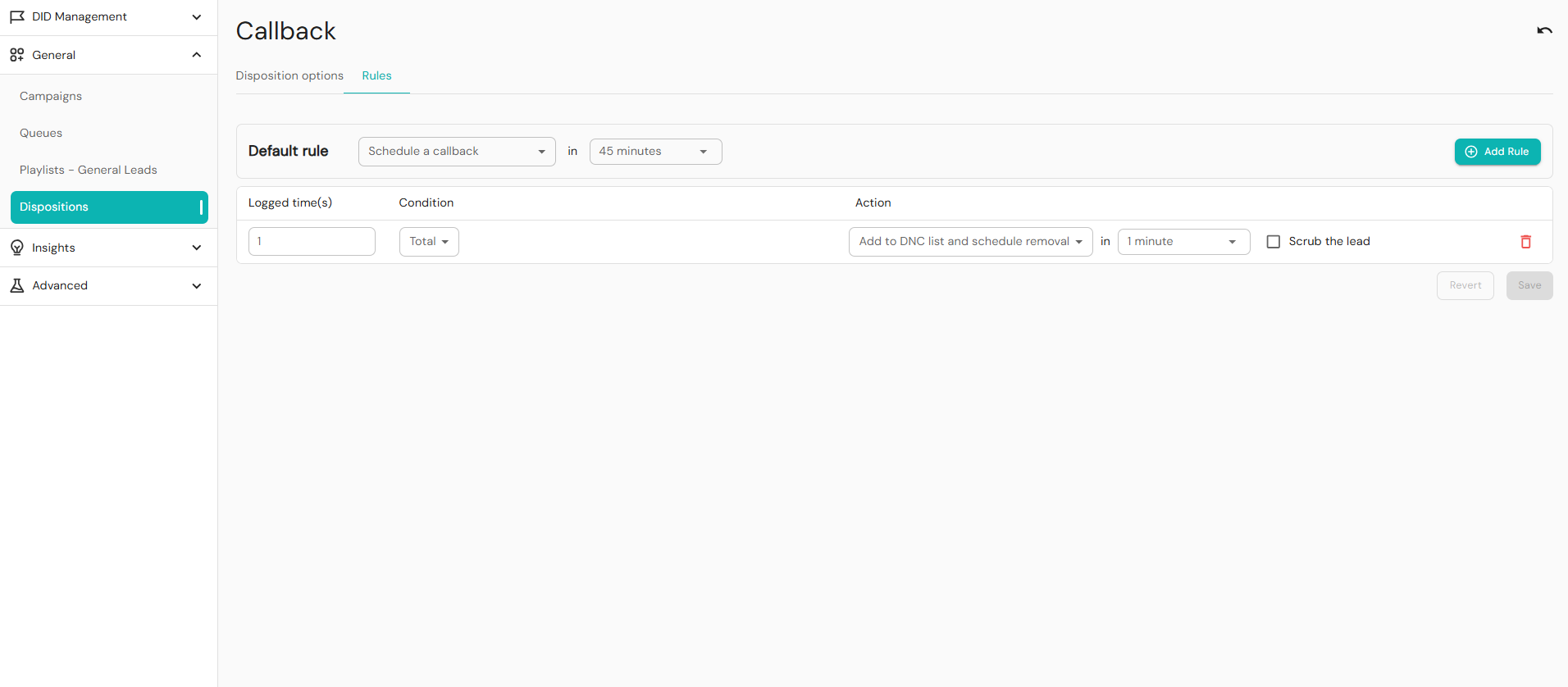
In the Rules subsection, administrators can specify parameters about how calls are managed.
- Administrators should first define a default rule and then add custom rules. Default rules are set primarily in the legacy application, but can be updated in both the legacy and Readymode iQ systems.
- Custom rules, if set, always override the default rule.
- The default rule will always be initially the same as it was in the legacy application. The default rule parameters may thereafter be changed by an administrator.
There are two areas in the Rules subsection:
- Default rule configuration
- Custom rules table
Default Rule Configuration
The options in the Default rule subsection will apply to all calls, regardless of their order. The configurable properties of the default rule are:
- Schedule a callback or remove a lead from the client database.
- Remove a lead.
- Add to the DNC list and or schedule for removal.
- Transfer to a queue.
Callback scheduling/lead removal options:
- Don’t schedule a callback: The lead will not be called again, but will not be added to the DNC list.
- Schedule a callback: This updates the lead’s callback time.
- Add to DNC list: The lead will be added to a DNC list.
- Add to DNC list and schedule removal: It adds the lead’s phone number to their DNC list and automatically removes it once the configured time has passed.
- Transfer to a queue: The lead will be added to a queue.
Custom Rules Table
The custom rules table consists of empty rows or rules captured from the legacy system. Administrators modify existing rules or create new rules to a maximum of ten custom rules. Custom rules always override the default rule. For example, if the default rule is not to schedule a callback to a lead, a custom rule that specifies a callback should be made to a lead will override the default rule.
To create a new custom rule:
- In Readymode iQ, navigate to General > Dispositions.
- Select a disposition from the table to open its details
- Click +Add Rule in the default rule subsection.
- Enter a logged time value, condition, and action for the new rule using the fields and dropdowns provided.
- Click Save.
The custom rule parameters are: Logged time(s) - the number of times a completed call was assigned to this disposition - Condition and Action. The options for the custom rule parameters are:
UI Elements and Functions for Rules
Configuring Duration
You can set the time window for scheduling a callback or deleting a lead in years, months, days, hours, or minutes. After configuring the duration, click Apply to capture the duration to the rule configuration. Note that clicking Apply does not save the rule configuration. After configuring all the parameters, clicking on the Save button at the bottom of the custom rules table.
Selecting a Queue
After selecting a queue, click Apply to capture the queue to the rule configuration. Clicking Apply does not save the rule configuration. After configuring all the parameters, the rule configuration must be saved by clicking on the Save button at the bottom of the custom rules table.
Navigating Away From a Page
Administrators are able to navigate away from the current page/display and select other campaigns menu options in the application without any warning prompts if there are no unsaved configurations.
However, if you have made any configuration changes, you will be prompted to confirm whether you want to leave the page without saving your changes. If you move between the Disposition options and Rules tabs without saving changes, any updates made will be lost.
- Select the Leave this page button to continue the navigation away action and abandon any unsaved changes.
- Select the Stay on this page button to stay on the current page and continue making changes.
Was this article helpful?
That’s Great!
Thank you for your feedback
Sorry! We couldn't be helpful
Thank you for your feedback
Feedback sent
We appreciate your effort and will try to fix the article