Want to learn how to use IQ’s robust playlist feature? Read on.
Navigating the Call Cadence (Playlists) Module
Note: You can use your browser zoom in (+) or zoom (-) function to resize the screen.
Playlists Pane
All the playlists from the legacy application will be displayed in the left pane on the Call Cadence page in the order they appeared in the legacy application. The default rule will therefore always be the same as it was in the legacy application.
playlistspane
Main Pane

At the top of the Main pane is the Insights section. Underneath the Insights section is the Rules section.
Insights Section
There are four charts in the Insights section.
- Calls chart - Total number of calls made by the predictive dialer during a given day for the selected playlist.
- Answered (%) chart - Total percentage of answered calls by both humans and answering machines during a given day for the selected playlist.
- Human Answered (%) chart - Total percentage of human-answered calls during a given day for the selected campaign.
- Calls to Connect chart - Total number of calls that needs to be made by the predictive dialer to be able to successfully connect to an agent during a given day for the selected playlist.
Rules Section
There are two sections in the Rules section.
- Default rule
- Custom rules table
Important note: Custom rules, if set, always override the default rule.
Administrators should define a default rule (1) first and then add custom rules (2).
To create a new rule, click Add Rule (3) at the top right of the page. After creating or modifying a rule, the Save button (4) at the bottom of the page will become active. (The maximum number of custom rules is 10.)
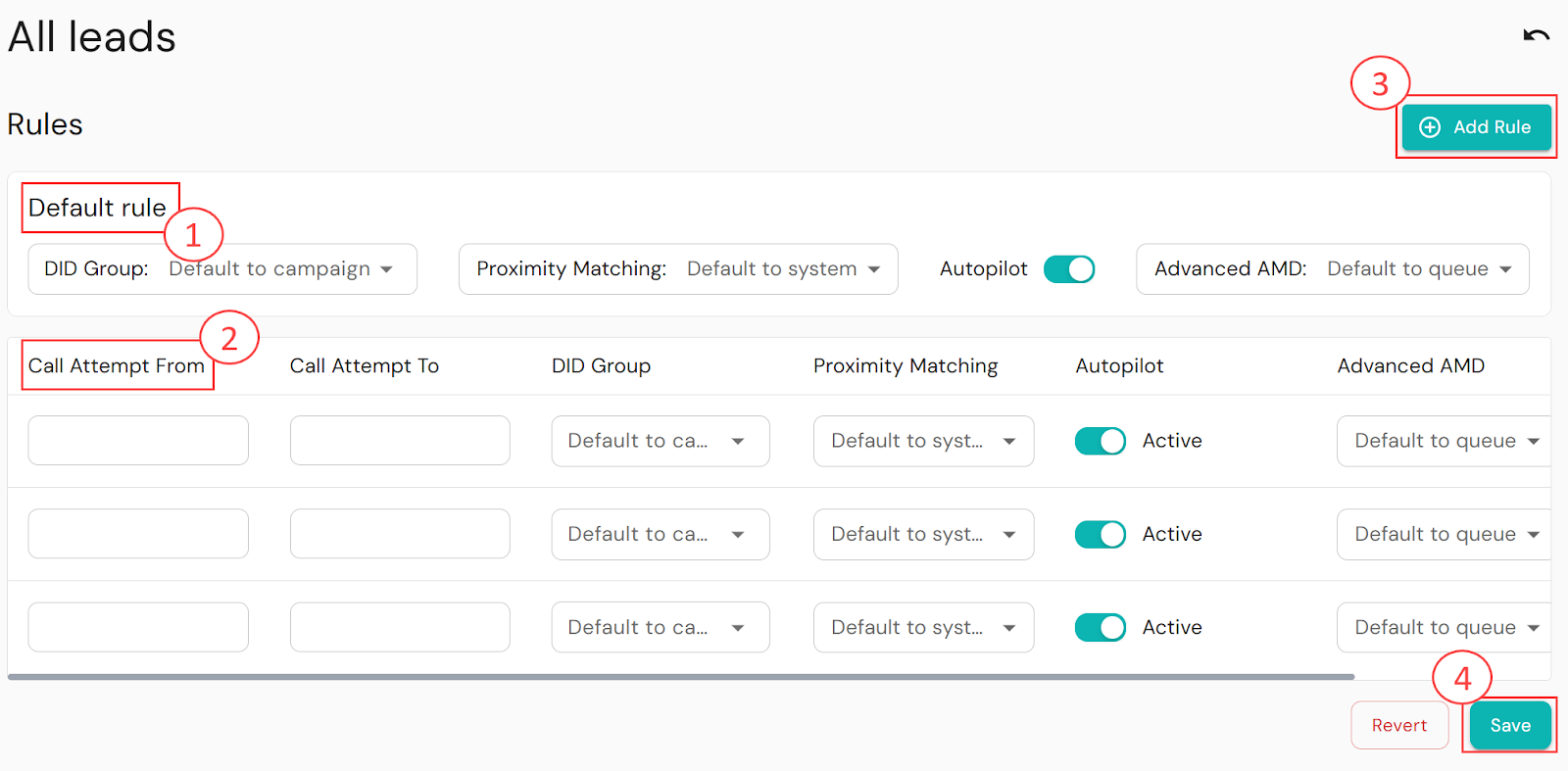
Rulespane
Default Rule
Default Rule Parameters
- DID Group default - Default to campaign, which is the default typically configured in the legacy application.
- Dropdown selection: Lists all campaigns from the legacy application.
Administrators can configure the playlist to use a particular campaign.
- Proximity Matching default - Default to system, which is the default typically configured in the legacy application.
- Dropdown selection: Can be updated to Yes or No, specifying whether or not to use proximity matching.
- Autopilot - Can be switched On or Off (default). If switched On, the application will only use clean DIDs (phone numbers) that are not flagged by any carriers.
- Advanced AMD (Advanced Machine Detection) default - Default to queue is most commonly used.
- Dropdown selection:
■ Disabled - Disables AMD (Important note: AMD is REQUIRED for voicemail drop).
■ Quick - Current default for customers in the legacy application and can be selected instead of the other options.
■ Rigorous - Has a different, more “rigorous”, logic for detecting AMD.
- Voicemail Drop - Can be switched On or Off. If switched On, allows a voicemail to be left on a person’s phone. You may deactivate this feature (Off) if you wish to suspend the dropping of voicemails for some reason, e.g. for a particular DID group.
Custom Rules Table
Most of the parameters for custom rules have the same definition as for the default rule, i.e. DID Group, Proximity Matching, Advanced AMD and Voicemail Drop. Additional parameters for custom rules are Call Attempt From and Call Attempt To.
How do custom rules work?
Call attempts are calls made by predictive dialers. An administrator can set rules for a playlist for specific call attempts. These custom rules will override the default rule.
Custom Rule Parameters
- Call Attempt To can be the same value or greater than Call Attempt From.
- The values for Call Attempt From and Call Attempt To should be unique per custom rule and should not overlap.
- To set a custom rule for a first call attempt, Call Attempt From must be set to 1.
- Where Call Attempt From is set to 2, the first call attempt will use the default rule as it was not configured. For instance, if Call Attempt From is 2 and Call Attempt To is 5, the first call attempt will use the default rule and call attempts 2 to 5 will use the custom rule.
- An administrator can leave Call Attempt To blank or (-), indicating the value is anything above the corresponding Call Attempt From.
- Wherever Call Attempt From is blank or a hyphen (-), the rule is considered the last rule to apply regardless of row position.
○ Call Attempt From and Call Attempt To logic should always start from the lowest integer to the largest unless a blank Call Attempt To was defined.
2. Gaps for call attempts between rules are allowed - these rules will use the configuration for the default rule.
Custom Rule Examples
Custom versus default rules for first call attempts
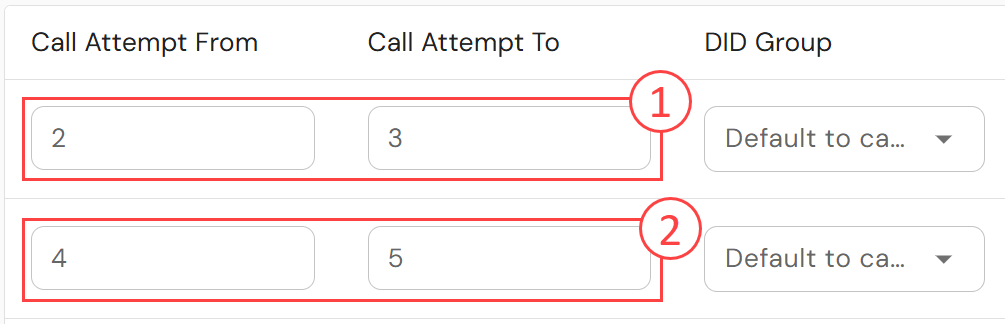
If you wish to use the default rule for the first call attempt, Call Attempt From must be set to 1. In the below example, both the first and fourth call attempt will use the configured custom rule.

If you wish to set a custom rule for the second call attempt, set Call Attempt From to 2. In the below example, the first call attempt will use the default rule while the second attempt configured row (1) and the fourth call attempt will use the custom rule for the configured row (2).
Gaps between calls
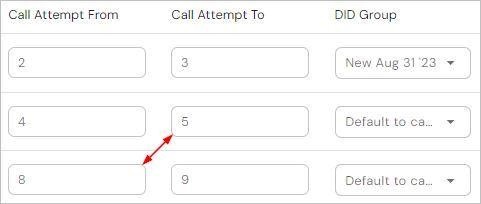
Rules may be set up that define a gap between call attempts where custom rules are not applied. In the below example, the default rule will be used for call attempts 6 and 7.
Note: The first call attempt will also use the default rule as the first call attempt to use a custom rule in this example is configured as 2.
Same Call Attempt Values
Rules may be set up to only use customer rules for a specific call attempt and the rest of the call attempts will fall under the default rule. In the below example, the custom rule will be used only for call attempt 3.

UI Elements and Functions for Rules
Custom Rules Buttons

- Delete/Remove button - Delete the specific row for the selected custom rule
- Duplicate Row button - The custom rule is duplicated and added just below the custom rule where the Duplicate Row button was selected (This is different from the Add Rule button where the function adds a custom rule at the bottom of the table with values for Default Rules)
- Add Rule button - Adds a new custom rule just below the custom rule where the add button was selected with similar Default Rules values
Saving Changes Made to Rules or Reverting

Save button - Administrators are able to click on the Save button which will trigger the validation of required fields and display error messages, where relevant (they are not given the option to cancel the action once selected).
Revert button - Administrators are able to click on the Revert button to cancel any user action that was done prior to any saving process. This will just cancel all the changes and will lose any inputs or selection that was done on the whole page/screen.
Note: Administrators are able to confirm whether to proceed to revert or cancel the revert user action:

Navigating Away From a Page
Administrators are able to navigate away from the current page/display and select other playlist menu options in the application without any warning prompts if there are no unsaved configurations.
However, if the administrator has made any configuration changes, they will see a warning prompt “Are you sure you want to leave this page? You will lose all unsaved changes.”

- Select the Leave this page button to continue the navigation away action and will lose any unsaved changes.
- Select the Stay on this page button to stay on the current page or playlist to continue any user action.
Error Alerts
The Call Cadence (Playlists) module will alert you to errors when you create or modify rules.
If the properties you assign to a scenario are incorrect, an Error icon will be displayed. Click on the icon to view information about the error.

error
In the below example, the system is alerting you that Voicemail Drops cannot be turned on if AMD is disabled.

VMerror
Was this article helpful?
That’s Great!
Thank you for your feedback
Sorry! We couldn't be helpful
Thank you for your feedback
Feedback sent
We appreciate your effort and will try to fix the article