Overview
DID Reputation in Readymode iQ lets users check whether major carriers have flagged specific phone numbers. Flagged phone numbers often show warnings like "Scam," "Scam Likely," or "Telemarketer" on leads' call displays, reducing answer rates and limiting the number's effectiveness.
With DID Reputation, clients can use carrier remediation links to request spam flag removal and preserve caller ID integrity, or opt to delete, replace, or reset phone numbers. The three major carriers monitored by Readymode IQ are AT&T, T-Mobile, and Verizon. Using DID Reputation, you can:
- View a quick summary of flagged phone numbers over a specified time period.
- Investigate phone numbers flagged by major carriers.
- Search for a specific phone number to check if it has been flagged.
- See how the phone number was verified and when it was last checked.
- Generate a CSV file to submit requests to carriers to clear spam flags.
Navigating DID Reputation
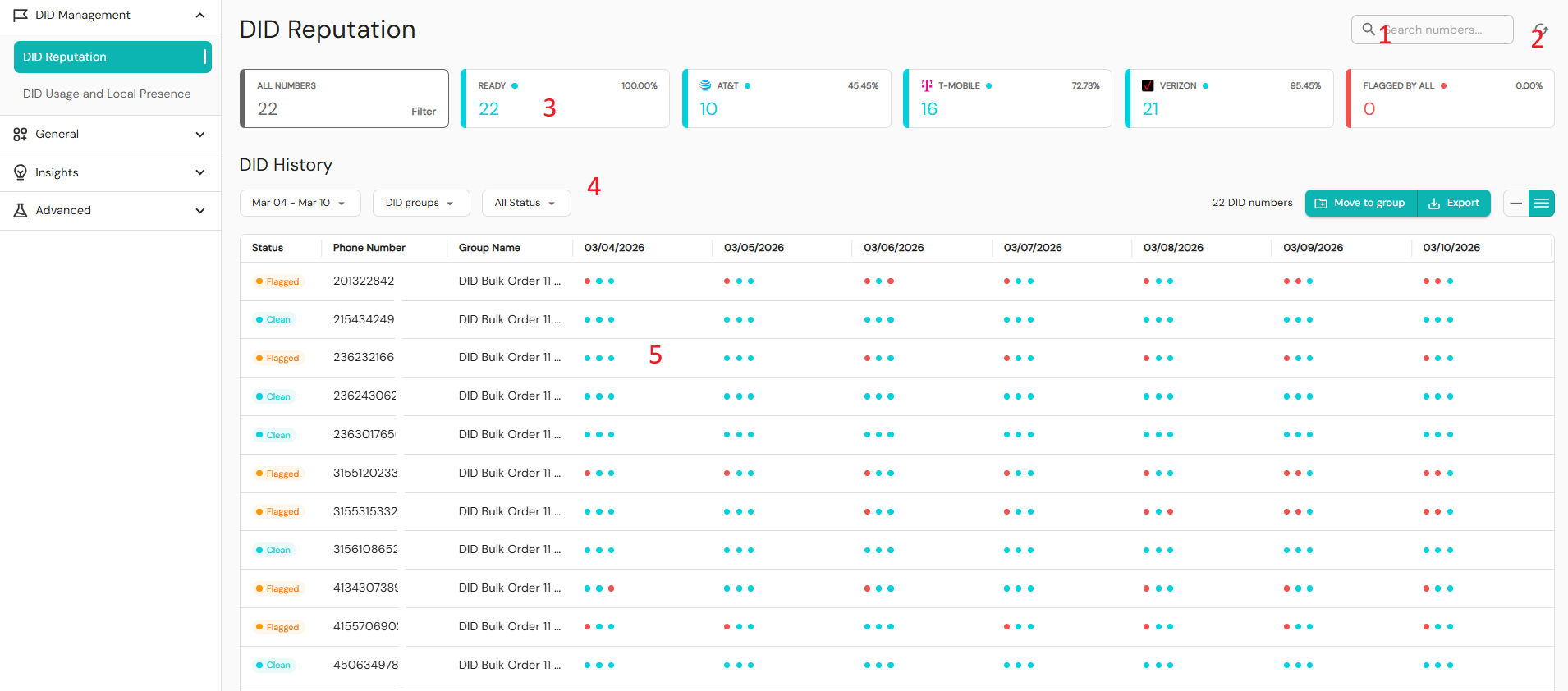
The areas of the DID Reputation page are:
- Search numbers
- Refresh page function
- Summary and Carrier Cards section
- DID History filters and functions
- DID History data grid section
Search numbers and refresh
Search phone numbers to investigate specific DIDs or prefixes. Search is restricted to numbers, and there is a minimum of 3 digits needed for partial matches. Click the refresh icon to update the data. To search for a phone number:
- In Readymode iQ, click the search field at the top.
- Enter the numeric search string in the search bar.
- Click Refresh.
Your search results will appear in the DID History sections.
Summary and Carrier Cards section
Summary cards identify clean, or unflagged, phone numbers and flagged phone numbers. Filtering shortcuts let you quickly assess phone number volume and carrier flag success rates. The summary cards available to users are:
ALL NUMBERS: All active numbers, regardless of carrier or flag status.
READY: All numbers not flagged by all carriers.
AT&T: Numbers that are clean with AT&T.
T-MOBILE: Numbers that are clean with T-MOBILE.
VERIZON: Numbers that are clean with VERIZON.
FLAGGED BY ALL - Numbers flagged by all three major carriers.
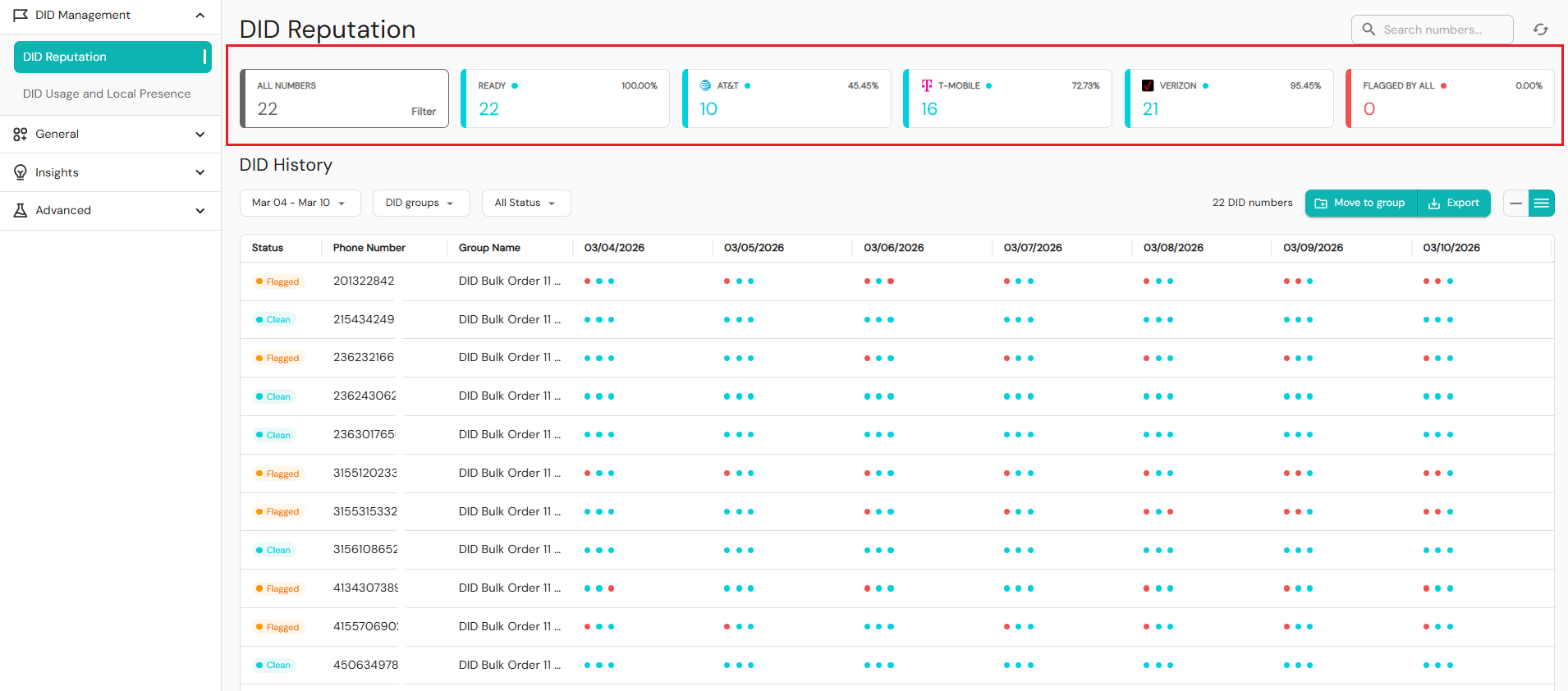
To view the filtered numbers for a summary card, hover over the ALL NUMBERS, READY, and FLAGGED BY ALL cards. After clicking a summary card, the results are displayed in the data grid sub-section in the DID History section. The totals across cards may exceed ALL NUMBERS because a single number can be clean on more than one carrier. This ensures accurate per-carrier visibility without double-counting the total.
DID History section
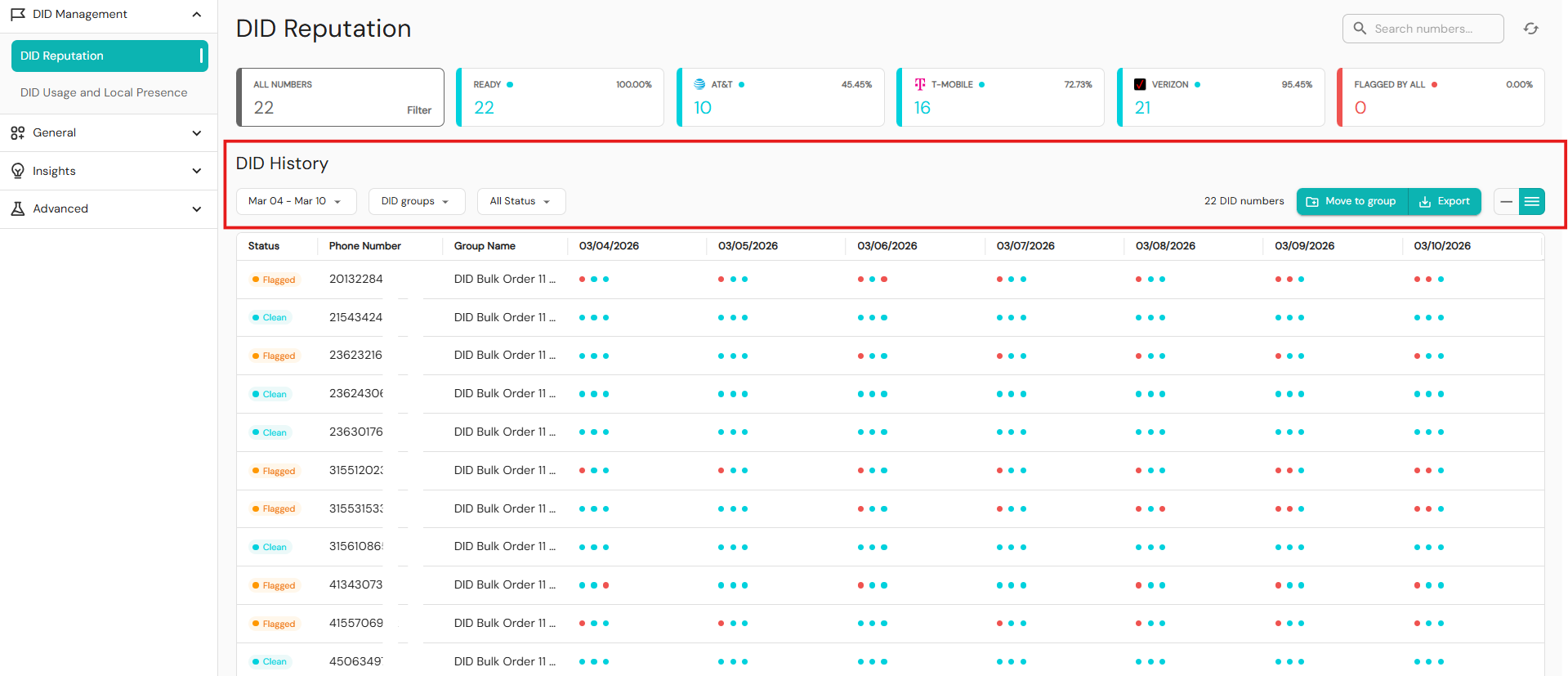
The filters and functions determine which data is displayed in the data grid sub-section. Administrators can refine their data results after any quick filtering via the Summary Cards section and Carriers section, or dive straight into creating a custom filter. The filters in the DID History section include:
- Period selector: The period for which data should be displayed.
- DID groups filter: Filter by active DID Groups.
- Flagged by filter: Filter by one or multiple carriers.
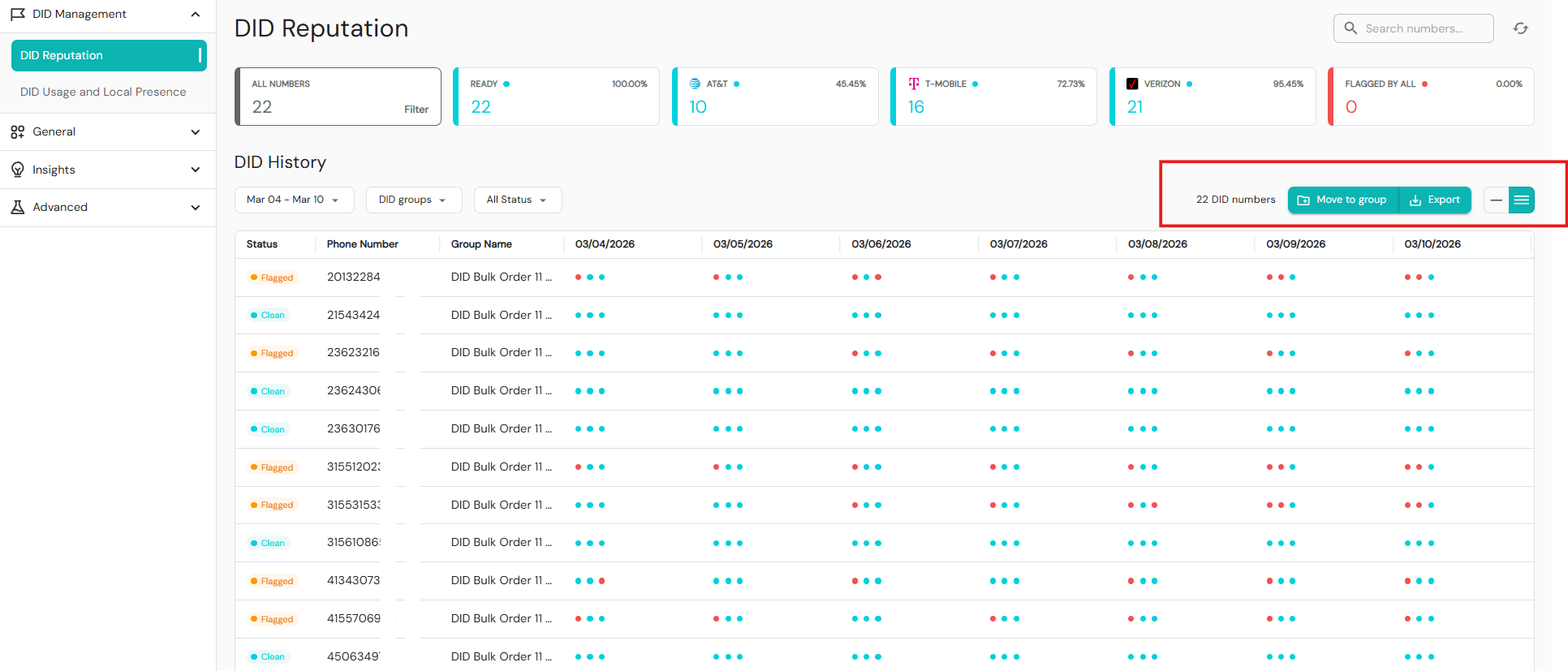
- DID numbers: Count of DID numbers displayed in the data grid.
- Move to group function: Move the DID numbers listed in the data grid from one group to another group.
- Export function: Download the DID numbers listed in the data grid to a .csv file on your computer.
- Display mode options: Determines how many carrier dots should be displayed.
The data grid will automatically be updated after any changes are made using the filters or functions.
Period selector
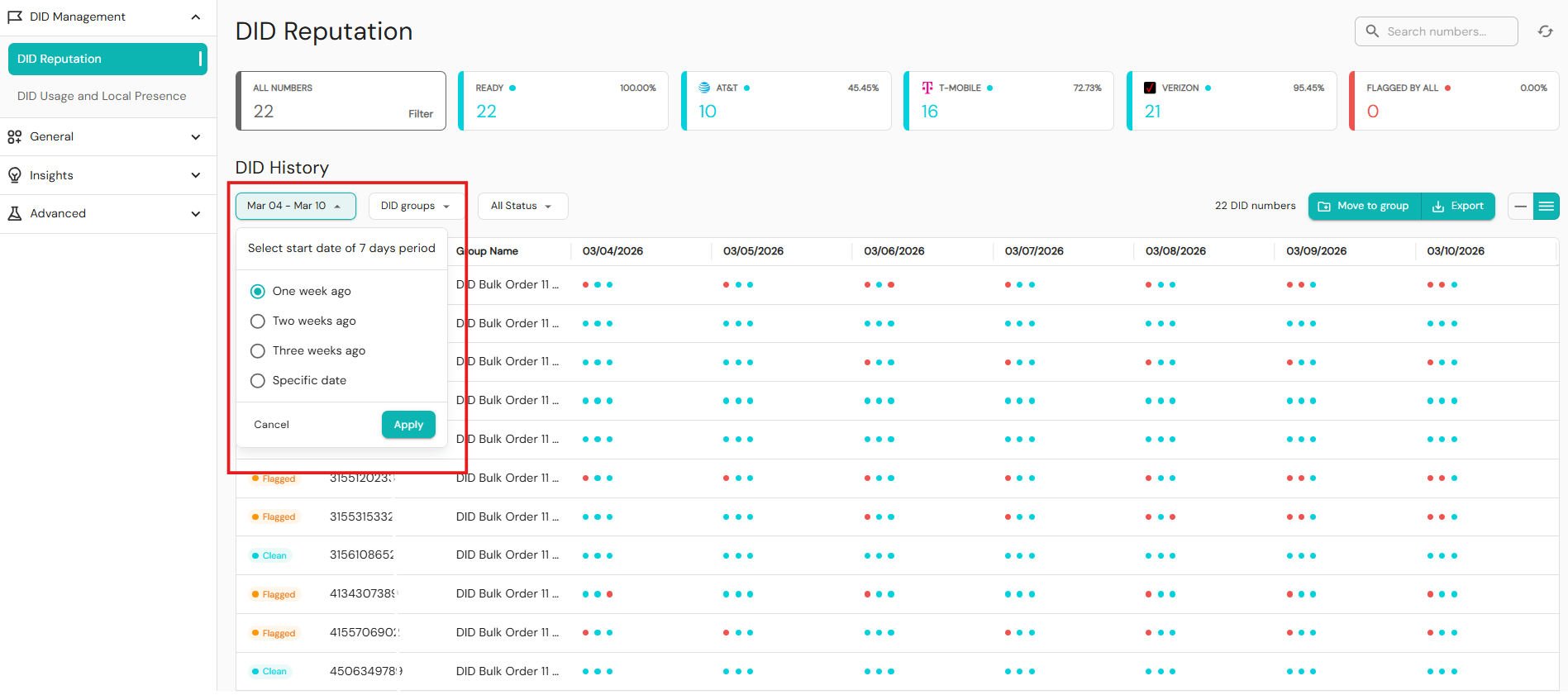
The default period reflected spans from the current date to show the past seven days' worth of data in the data grid. Changes will reflect the previous seven days from the new start date selected. To change the start date:
- In Readymode iQ, click DID Management > DID Reputation.
- In DID History, expand the dropdown showing the seven-day intervals from today’s day
- Click to select One week ago, Two weeks ago, Three weeks ago, Specific date.
- Click Apply.
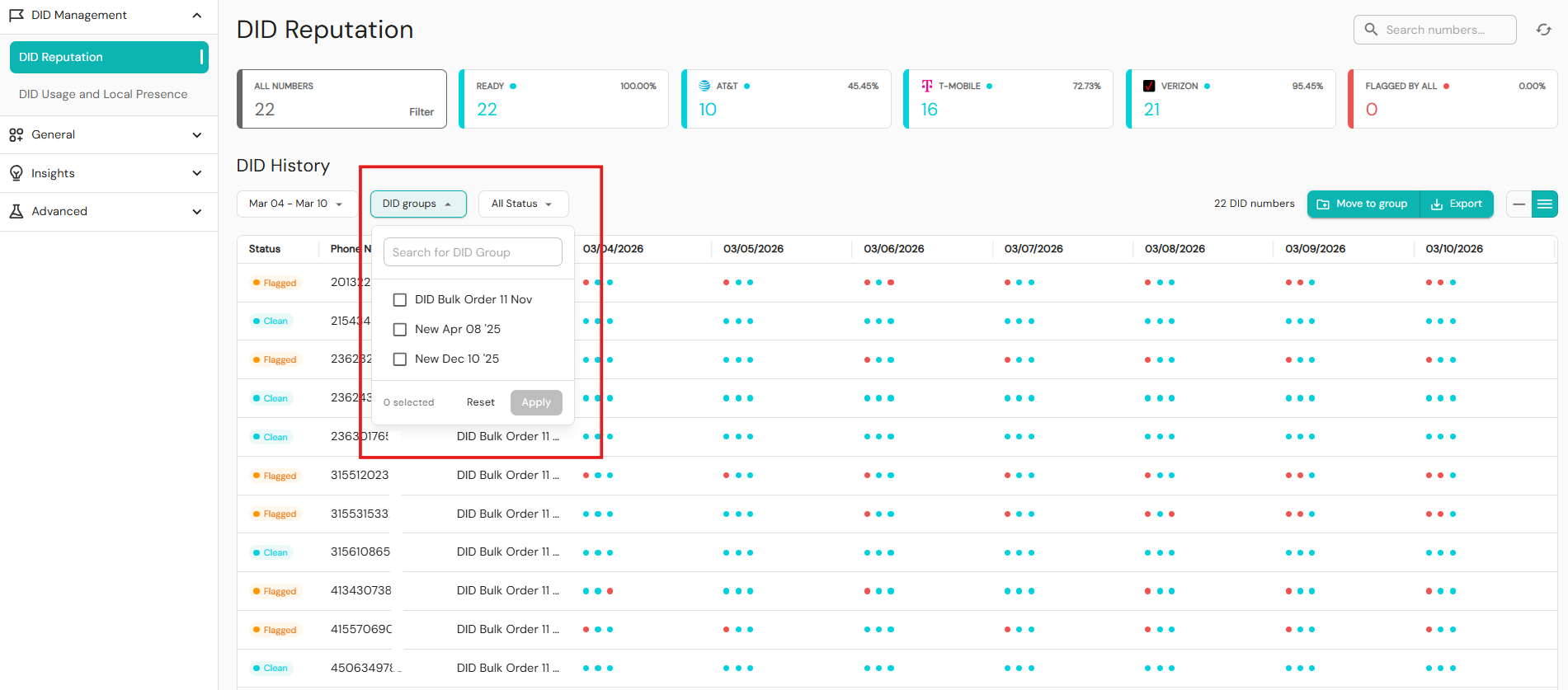
DID Groups filter
You can display data for a specific group or select one or more groups from the list of active DID Groups. To select DID groups:
- In Readymode iQ, click DID Management > DID Reputation.
- In DID History, expand the dropdown DID Groups.
- Click to select all applicable groups.
- Click Apply to confirm changes, or Reset to clear all DID group selections.
Flagged by filter
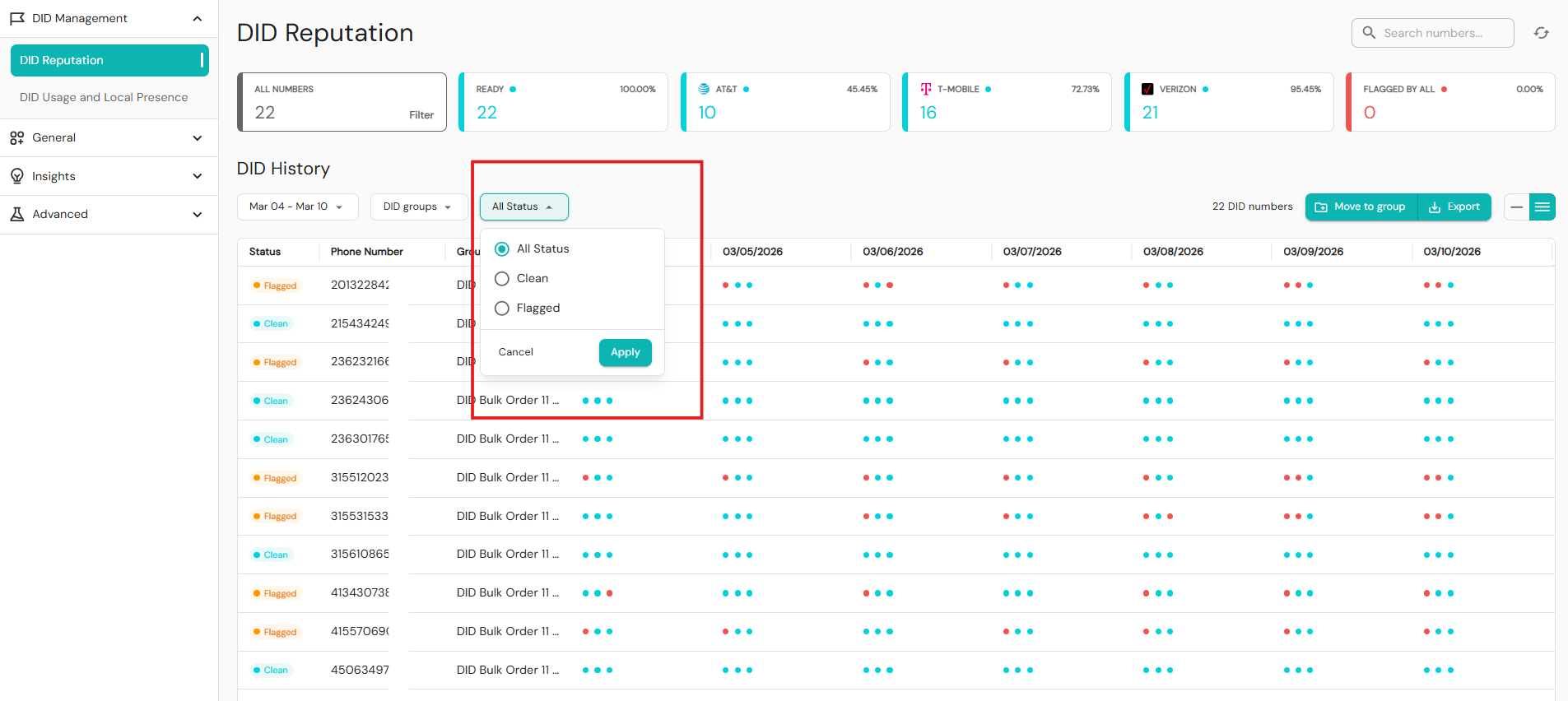
You can display all DID numbers, both flagged and clean, or only those flagged either as clean or flagged. To filter by clean, flagged, or all status:
- In Readymode iQ, click DID Management > DID Reputation.
- In DID History, expand the dropdown All Status.
- Click to select between All Status, Clean, or Flagged.
- Click Apply.
To restrict your selection to only Flagged By:
- In Flagged by, select which carrier and whether to filter by Any Selected, or All Selected.
- Click Apply to confirm changes, or Cancel to exit without changes.
After clicking Apply, you can choose which carriers you wish to include in your selection:
- Any selected: DID numbers flagged by any of the carriers you have checked will be displayed. For example, if you have checked two carriers and only one carrier flagged the number, the number will be displayed in the data grid.
- All selected: DID numbers flagged by all the carriers you have checked will be displayed. For example, if you have checked two carriers and only one carrier flagged the number, the number will not be displayed in the data grid. In this case, all selected carriers must have flagged the number for it to be displayed.
DID numbers
If you have a very long list of DID numbers displayed in the data grid, it is useful to be able to see at a glance how many there are.
Move to group function
You can move all the DID numbers filtered in the data grid from one DID group to another DID group, search for a specific group to move the numbers, or select a group from the list of active groups. To select and move groups:
- In Readymode iQ, click DID Management > DID Reputation.
- In DID History, click Move to group.
- Click to select a destination group.
- Click Move to group.
Note that all numbers in the Data Group will be moved, so be cautious when selecting which numbers to include.
Export function
To download the DID numbers listed in the data grid as a CSV file on your computer:
- In Readymode iQ, click DID Management > DID Reputation.
- In DID History, click Export.
- Click Export CSV.
The data will be downloaded as a comma-separated list displaying the phone number and whether the number is flagged by at least one carrier. You can use the CSV file to submit requests to carriers that a particular phone number should not be flagged or cleaned.
Display mode options
The number of carrier dots shown per phone number in the data grid, from one to three, depends on the selected display mode. Dots are attributed to carriers in the order: AT&T, T-MOBILE, and VERIZON. Green indicates a clean number, red indicates a flagged number.
Data grid sub-section
After you select a Summary Card, perform a search, or select a filter, the results will be displayed in the data grid sub-section. How results are displayed is determined by the display mode selected in the Filters and Functions sub-section:
- Status – Status of whether the number is flagged or clean.
- Phone Number – Incoming phone number.
- Group Name – Group to which the number belongs.
- Date – Always shows exactly seven days of data. Carrier dots indicate which major carriers flagged each phone number. Hover your cursor over the dots to see which carriers have flagged a number.
Data grid behavior and carrier dots
Carrier dots in the date column show the flagged status via color and grouping. Click to select one dot mode or three dot mode:
- One dot mode: A red means at least one carrier flagged the number, a green dot means the number is clean on all carriers. Hovering over the dot reveals the per-carrier details.
- Three dot mode: Shows flags per carrier. One red dot means one carrier flagged it, two red dots means two carriers, three red dots means all carriers have flagged the number Hovering over the dots reveals the per-carrier details. Three red dots indicate flagging by all major carriers, requiring immediate action.
Call images dialog
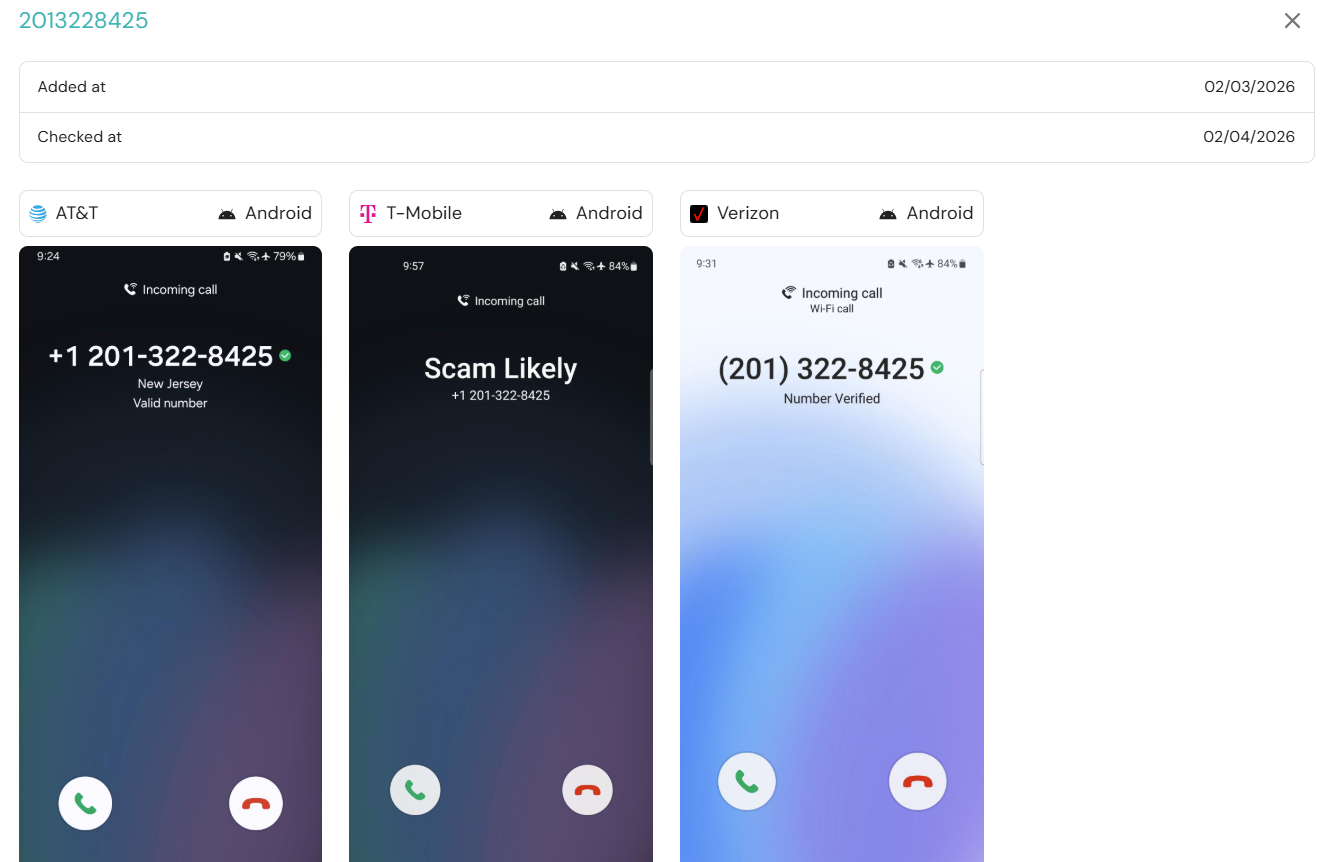
To view a phone number's last verification date, double-click its row anywhere in the Data Grid to open the call images dialog. In the call images dialog, you can see:
- The date the phone number was added.
- The date the phone number was last checked.
- Which major carriers have flagged the phone number as a spam risk.
- Which operating system was the number flagged, iOS, or Android.
Was this article helpful?
That’s Great!
Thank you for your feedback
Sorry! We couldn't be helpful
Thank you for your feedback
Feedback sent
We appreciate your effort and will try to fix the article