Want to download or upload a Do Not Call List, or delete numbers from the List? Learn how below.
Managing the DNC List
Readymode offers several options to enable you to manage your DNC List effectively, such as adding and deleting numbers in bulk.

Exporting the DNC List
Click the Download CSV link to export a CSV file containing your DNC numbers. The list will be emailed to the billing email address on file.

The file will contain the same columns as the List Display - Phone Number, Added, Expires, and Reason.

Importing a DNC List
If you have an existing list of DNC numbers, you can import it into your DNC List in Readymode.
Prepare your DNC List
Your file will need to be in CSV format, with one phone number per row. You can either prepare your own file, or download our pre-formatted import template.
You can add up to 4 columns of data to your file:
- Phone (1) - The phone number (required).
- Added (2) - The date the number was added to the List. If the date is left blank, the import date will be used.
- Expires (3) - The date the number should expire from the List. If the date is left blank, the number will never expire.
- Reason (4) - The reason the number was added to the List. If the reason is left blank, the Default Reason will be used.

Quick Tip: You can download our pre-formatted import template by opening the File Import Tool.

Click on the "here" link to download the template.

Import your DNC List
Once your file is prepared, click on the Upload/Import a Do Not Call List link to open the File Import Tool.

In the File Import Tool, select your file using the Choose File button (1) and select a reason from the Default Reason list (2). This reason will be used if there is no individual reason listed for the numbers in your file. When you're ready, click the Upload now button (3) to import your file.

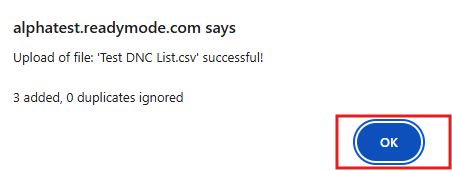
You'll see a confirmation message letting you know your import results. Click the OK button to close.
Removing Numbers from the DNC List
You can remove numbers individually, or all at once. Note that if a number appears multiple times in the DNC list, deleting one DNC record for that number will delete all records for that number.
Remove Numbers Individually
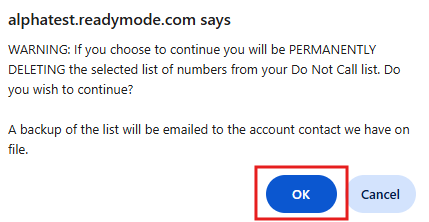
To remove individual numbers, click on them in the List, then click the Delete Selection button. You'll see a message asking you to confirm the removal. Click the OK button to proceed.
Note: If the number appears multiple times in the DNC list, all DNC records for that number will be removed.
Quick Tip: If you would like to change your selection, click the Unselect link to start over.

Remove All Numbers
To remove all numbers, click the Delete All button in the upper right.

You'll see a message asking you to confirm the removal. Click the OK button to proceed.
Was this article helpful?
That’s Great!
Thank you for your feedback
Sorry! We couldn't be helpful
Thank you for your feedback
Feedback sent
We appreciate your effort and will try to fix the article