Looking for more information about the numbers on your Do Not Call List? Find out how to review your List here.
Reviewing the DNC List
When reviewing your DNC List, refer to the List Display (1) area to see the numbers within the List. You can modify which numbers are displayed by using the Filters (2) available.

Viewing the DNC List
When viewing the List Display area, numbers will be displayed in rows, with columns providing additional information:
- Phone Number (1) - The phone number in the List.
- Added (2) - The date the number was added to the List.
- Expires (3) - The date the number will be removed from the List, if it is set to expire.
- DNC Reason (4) - The reason the number was added to the List.

DNC Expiry
Whether or not a call will expire from your DNC List is determined by the Default Rule configuration of the Call Result used to disposition the Lead.
You can configure the Call Result to add the number to the List permanently, or have it expire and be removed from the list after a specific amount of time.
DNC Reason
The DNC Reason column displays the names of the Call Results that were used to disposition the lead.
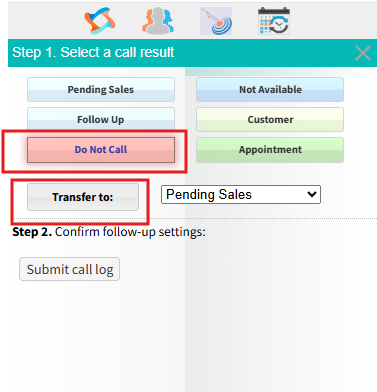
Note: Leads transferred using the Transfer button will display "Transfer". These Leads will not be dialed in the General Leads Queue, however they may still be dialed in other Queues, if the DNC is set to expire.
Filtering the DNC List
Using the Filters available, you can refine the List to display specific information.
- DNC Reason filter (1) - Filter numbers based on the DNC Reason.
- Pagination menu (2) - View additional pages of the List.
- Time Range filter (3) - Filter numbers based on the date added.

Was this article helpful?
That’s Great!
Thank you for your feedback
Sorry! We couldn't be helpful
Thank you for your feedback
Feedback sent
We appreciate your effort and will try to fix the article