Want to call Leads one at a time? Learn how to use the Cold Call App below.
Making Calls using the Cold Call App
Readymode's Cold Call feature enables you to call Leads in the General Leads Queue one at a time. This is ideal for handling high value Leads, or any situation where you want to review the Lead's profile more carefully before connecting with them.
Note: This feature needs to be enabled by a System Administrator before it can be used. Please check with your manager about having this enabled for your account if you don't see the Get Next Leads button.

The following guide will walk you through the process of making calls using the Cold Call App:
- Switch to Inbound Only Mode
- Get Next Lead
- Call the Lead
- Handle the Call
- Disposition the Call
- End the Call
- Stop Making Calls
Switch to Inbound Only Mode
To ensure the Dialer will not activate, switch your Availability Mode to "Inbound only".

Get Next Lead
To pull up a Lead to call, click the Get Next Leads button at the top of the screen.

The Lead information will be displayed in the CRM Fields for you to review.

Call the Lead
To call the Lead, click on one of their Phone Numbers.

Note: If you decide not to call this Lead, you can close it using the X button. However, if you close it, that lead will be locked out for a set period.
Handle the Call
As you speak with the Lead, review any Scripts that appear for guidance.

Switch to the Contact History tab if you have any Call Notes to record.

Disposition the Call
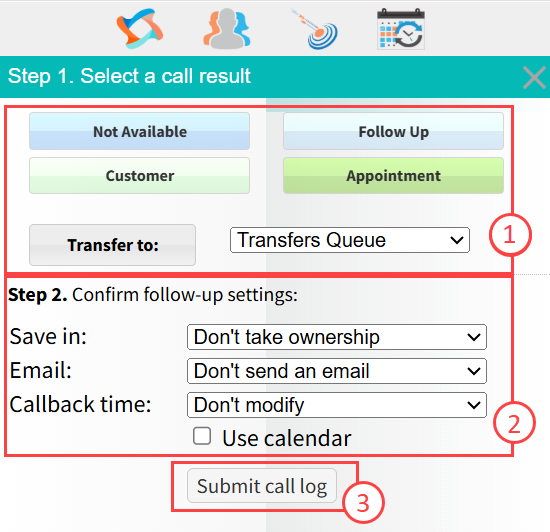
As you begin to wrap up your call, select a Call Result that best describes your experience speaking with the Lead.

Click on one of the Call Result buttons (1). You'll see Follow-up Settings (2) for that result appear below, which you can adjust as needed.
Once your call is complete, click Submit call log (3) to disposition the Lead.
Quick Tip: The Call Result will be recorded on the Contact History tab, along with any Call Notes.
End the Call
Once you select a Call Results button, it may be configured to end the call automatically. If not, you will need to end it manually - just open the Dial Pad and click the End Call button.
Once the Lead Profile is closed and the call is ended, you can click the Get Next Lead button to make another call.

Stop Making Calls
To stop taking calls, switch your Availability Mode to "Break" or one of the other options, as directed by your manager.

Was this article helpful?
That’s Great!
Thank you for your feedback
Sorry! We couldn't be helpful
Thank you for your feedback
Feedback sent
We appreciate your effort and will try to fix the article