Looking to add some new Scripts for your team? Check out the instructions below.
Creating Scripts
Readymode enables you to create new Scripts for your Agents to effectively handle calls.
Create a New Script
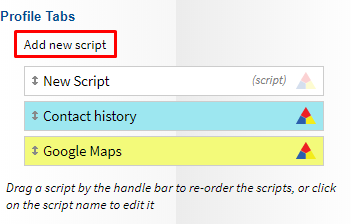
To create a new Script, navigate to Scripts and select the Add new script link.
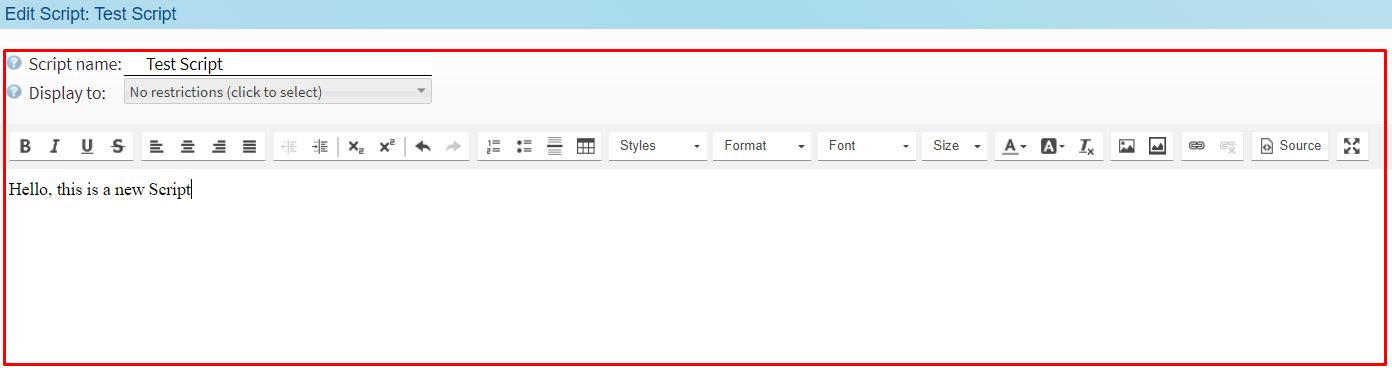
Adjust the Configuration Options to suit the purpose of the Script. Your Script will be automatically saved as soon as you edit it.
Quick Tip: The Script Editor only accepts Plain Text format. Pasting script contents from a Word Document, Google Docs, or any other application may include hidden formatting that can cause issues. Instead, paste your script into a basic Plain Text editor (For example: Notepad on Windows), this ensures the content is converted into Plain Text, then copied from Notepad into the Script Editor. Alternatively, it’s best to write the script directly within the Script Editor in Readymode.
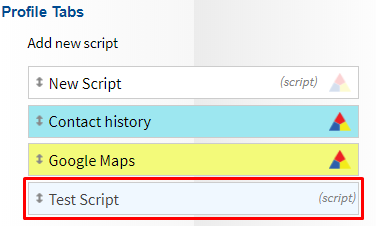
You'll now see your new Script listed under Profile Tabs.
Was this article helpful?
That’s Great!
Thank you for your feedback
Sorry! We couldn't be helpful
Thank you for your feedback
Feedback sent
We appreciate your effort and will try to fix the article