Learn how to use the handy Callback Manager App to view and organize your Callbacks.
Using the Callback Manager App
Using the Callback Manager App, you can view and manage a sortable, searchable list of Callbacks.
Start by using the Callback Filters (1) to search for Callbacks that match the criteria you select. Next, view your results and take action on those Callbacks using the Callback List (2).
Note: Some features of the Callback Manager App require specific Permissions. Learn more here.

Callback Filters
Use the Select filters drop-down menu (1) to select the following Filter Groups to include in your view:
- Agent or Queue Filter Group (2) - This group contains Filters for Location, Queue or Not Signed In
- Scheduled Date Filter Group (3) - This group contains Filters for Date Range, Over Due or Scheduled
Below you'll find detailed descriptions of each Filter available in these groups. Multiple Filters may be applied at the same time to further refine your results.
Once you've selected and configured your Filters, click the Update button (4) to apply your changes. You'll see Callbacks that match your search criteria appear in the Callback List, where you can review and take further action.

Agent or Queue Filters
The following Filters are available in the Agent or Queues Filter Group:
- Location - Filter by Queues and Users
- User Folder - Filter by User Folders
- Not Signed In - Filter by Users who have not signed in

Location
Selecting Location (1) enables you filter by all Queues and Users that have assigned Callbacks.
To view applicable Callbacks, select Queues or Users from the Select locations drop-down menu (2).

Note: You cannot choose the General Leads queue as the predictive dialer handles any callbacks stored in there.
User Folder
Selecting User Folder (1) enables you to filter by all User Folders that contain Callbacks.
To view applicable Callbacks, select a Folder from the Select folders drop-down menu (2).

Not Signed In
Selecting Not Signed In (1) enables you to filter Callbacks by Users that have not signed in within a specific time period.
To view applicable Callbacks, select a Time Period (2).

Scheduled Date Filters
The following Filters are available in the Scheduled Date Filter Group:
- Date Range - Filter by Callbacks scheduled within a specific date range
- Over Due - Filter by Callbacks which are overdue by a certain time period
- Scheduled - Filter by Callbacks which are coming up in a certain time period

Date Range
Selecting Date Range (1) enables you to filter Callbacks using a specific date range.
To view applicable Callbacks, enter the dates in the Date Range filter (2).

Over Due
Selecting Over Due (1) enables you to filter by Callbacks that were scheduled in the past, but have not yet been handled.
To view applicable Callbacks, select a Time Period (2).

Scheduled
Selecting Scheduled (1) enables you to filter by Callbacks that are scheduled in the future.
To view applicable Callbacks, select a Time Period (2).

Callback List
Once you've applied Filters, applicable results will appear in your Callbacks List, where you can select Callbacks and choose various actions to manage them.

Selecting Callbacks
In order to Transfer or Reset Callbacks, they must first be selected in the Callback List. You can select single or multiple Callbacks using the following methods.
To select a single Callback, click on it.

To select multiple Callbacks individually, hold down the Ctrl key and click each Callback.

To select multiple Callbacks in a row, hold down the Shift key and select the first and last Callback.

To deselect Callbacks, click the Update button.

Callback Actions
After selecting your Callbacks, you can choose from the following actions to manage them:
- Transfer Callbacks (1) - Reassign Callbacks to Users or Queues
- Search Callbacks (2) - Search through the Callback List
- Reset Callbacks (3) - Send Callbacks back to the General Leads Queue
- Export (4) - Export the list of Callbacks in CSV format
- Sort (5) - Sort the list alphabetically by clicking on column headers

Transfer Callbacks
Using the Transfer feature, you can reassign Callbacks to Users and Queues.
To start a transfer, first select the Callbacks in the list.

Next, choose a Queue or User from the Transfer drop-down menu (1) and click the Transfer to: button (2).

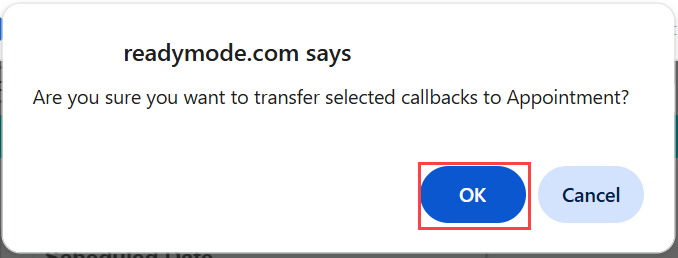
You'll see a popup message asking you to confirm the transfer. Click the OK button to proceed.
You'll now see the Callbacks assigned to the Queue or User you selected.

Reset Callbacks
Using the Reset feature, you can remove Callbacks and send Leads back to the General Leads Queue.
To start a reset, first select the Callbacks in the list.
Next, click the Reset Callbacks button.

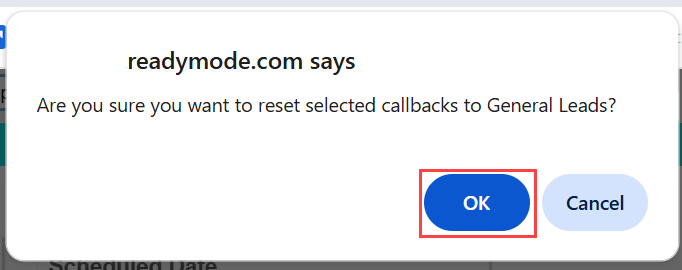
You'll see a popup message asking you to confirm the reset. Click the OK button to proceed.
The Callback appointments will be removed from the Leads and will no longer appear in the Callback List.
Was this article helpful?
That’s Great!
Thank you for your feedback
Sorry! We couldn't be helpful
Thank you for your feedback
Feedback sent
We appreciate your effort and will try to fix the article