Has your company email address changed? You can update it easily using the instructions below.
Managing Outbound Email
The following options will help you to easily manage your Outbound Email. To access these options, first navigate to Outbound Email.
Note: Changes to existing Outbound Email records should be made with care, as any modifications to records already in use will immediately impact your outbound email delivery service. Please contact Technical Support for assistance if you're not sure about making changes.
Editing Outbound Email
Using the Configuration Options available, you can easily make changes to your Default Outbound Email and any Campaign-specific Outbound Emails that have been set up.
To make changes to an existing Outbound Email, use the Campaign drop-down menu (1) to view the specific email you wish to modify.
Make changes to the Outbound Email using the available Configuration Options (2) and click Update Email (3) when done.
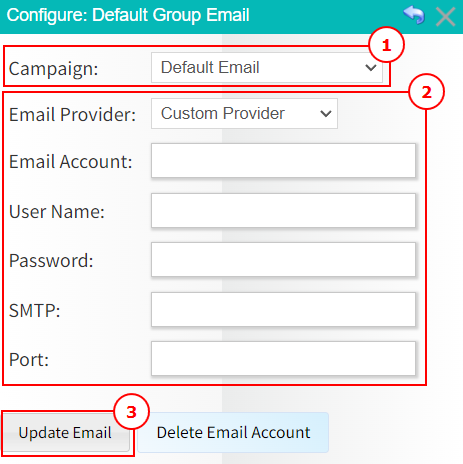
A confirmation message will appear at the top of the screen to confirm the changes have been made.

Removing Outbound Email
If you are no longer using an Outbound Email, you can easily remove it.
Note: Removing the Default Outbound Email is not recommended, as this will prevent Readymode from being able to send emails on your behalf and may impact other system functionality. Please contact Technical Support for assistance if you're not sure about making changes.
To remove an existing Outbound Email, use the Campaign drop-down menu (1) to view the specific email you wish to remove.
Click the Delete Email Account button (2) when ready.
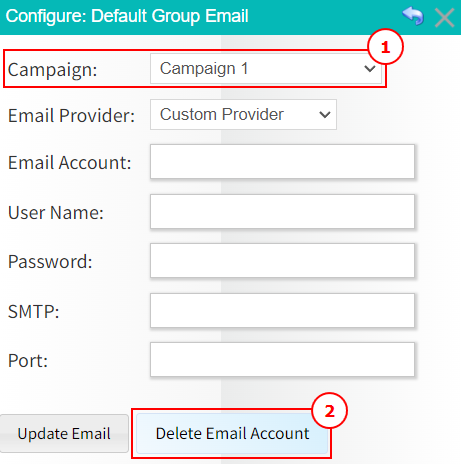
A confirmation message will appear at the top of the screen to confirm the email has been removed.
Was this article helpful?
That’s Great!
Thank you for your feedback
Sorry! We couldn't be helpful
Thank you for your feedback
Feedback sent
We appreciate your effort and will try to fix the article