Need to merge 2 or more calls together? Read on to learn how.
Merging Calls
Readymode offers several options to enable you to merge multiple calls together for conference calls or Third Party Verification:
Merging Calls Manually
Use this method to merge multiple calls together.
While on a call, click the Hold button on the Dial Pad.

Next, click the New Line button to open a new line.

Enter the number or extension for the second call in the Number to Dial field (1) and click the Call button (2).

Once the second call connections, click the Merge button to combine both calls.

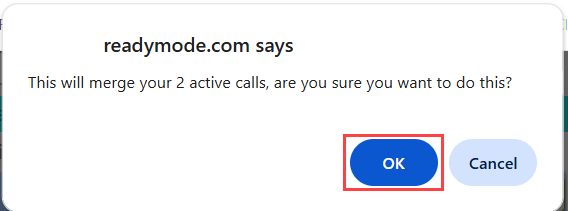
You'll receive a popup asking you to confirm the merge. Click the OK button to proceed.
Once the calls are merged, you'll see all parties listed at the top of the Dial Pad.

The Speaking icon (1) indicates who is currently speaking by turning blue. The Disconnect button (2) can be used to remove any party from the call.

Merging Calls with TPV
The TPV feature allows you to quickly add a specific third party to an ongoing call. TPV Hotkeys can be configured to connect to internal extensions or external numbers.
Note: This requires installation and configuration of the Third Party Verification App and configuration of TPV Hotkeys. Please contact Technical Support for assistance with this if needed.
While on a call, click the desired TPV Hotkey on the Dial Pad.

When the TPV party connects, you'll see all connected parties listed at the top of the Dial Pad.

The Speaking icon (1) indicates who is currently speaking by turning blue. The Disconnect button (2) can be used to remove any party from the call.

Was this article helpful?
That’s Great!
Thank you for your feedback
Sorry! We couldn't be helpful
Thank you for your feedback
Feedback sent
We appreciate your effort and will try to fix the article