Looking to process a credit card payment in Readymode? Learn how below!
Using the Merchant Processing App
The Merchant Processing App enables you to process credit card transactions directly in Readymode.
Note: The Merchant Processing App must be installed via the App Garage and at least one payment processor gateway (or Manual Mode) must be configured in Billing Configuration in order to use this feature.
Navigating to the Merchant Processing App
The Merchant Processing App will appear at the bottom of your Lead Profiles in the Billing Details section. This App contains the following features:
- Billing Details (1) - Fields to collect and store billing information.
- Transaction Processing (2) - Tools to process transactions, and a list of prior transactions.

Entering Billing Details
To process a transaction, you'll first need to enter the following information in the Billing Details fields:
- Card field (1) - The credit card number. A green check mark will appear when the number has been entered correctly.
- Expiry field (2) - The expiry date of the card, in MM/YY format.
- CVV field (3) - The CVV security code, located on the back of the card.
- Total Fee (4) - The total amount that should be charged for the transaction, including any applicable taxes.
- Billing Contact (5) - Use the existing contact information for billing, or enter a separate set of information.
Note: If you are using Manual Mode to process transactions, only the Total Fee field is required.

Billing Contact
When checked, the Use primary contact checkbox enables you to use the existing Contact Information on the Lead Profile for billing purposes.

Quick Tip: When using this option, confirm with the Lead that the Name (1) and Address fields (2) on the Lead Profile match the billing contact on file for their credit card.

If the Lead provides different billing information, leave the Use primary contact checkbox unchecked.

A separate set of Billing Fields will then appear to enable you to enter the new billing information.

Processing Transactions
Readymode uses Billing Modules to process Transactions. Billing Modules can either be integrated with a third-party payment processor to transfer funds, or you can use the built-in Manual Mode to capture transactions for reporting purposes only.
Billing Modules can be selected via the Billing Module drop-down menu. This menu will appear when multiple payment processors are enabled, and requires CCS Billing "Select Module" Permissions to view.

There are 4 types of transactions that are available:
| Type | Description | Are funds transferred? |
|---|---|---|
| Authorization | Check if sufficient funds are available and hold them for later capture. | No |
| Void | Cancel an Authorization. | No |
| Capture | Capture a payment. | Yes |
| Refund | Refund a payment. | Yes |
Processing an Authorization
To process an Authorization, enter your Billing Details and select a payment processor or Manual Mode from the Billing Module drop-down menu (1).
Next, choose the Full amount button (2) to process the amount shown in from the Total Fee field, or choose the Other amount button (3) to enter a different amount.

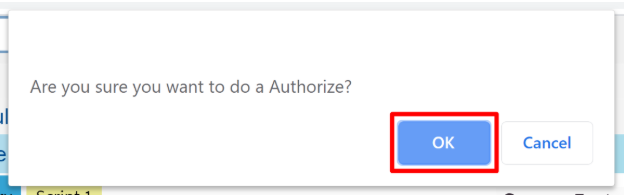
The system will ask you to confirm the transaction. Click the OK button to continue.
You will now see the Authorization appearing in the Transaction List.

Voiding an Authorization
To void an Authorization, click the Cancel link next to the Transaction in the Transaction List.

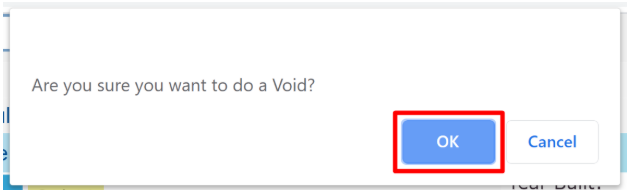
The system will ask you to confirm the Void. Click the OK button to continue.
The Authorization will now be Voided.

Processing a Capture
To process a Capture, first process an Authorization.
Next, locate the Authorization in the Transaction List and click the Capture link.

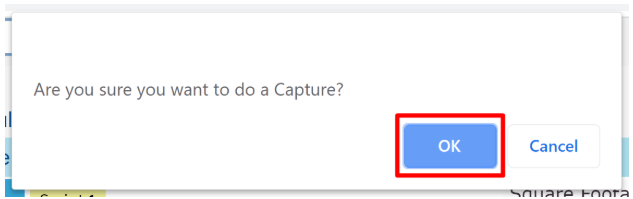
The system will ask you to confirm the Capture. Click the OK button to continue.
You will now see the Capture appearing in the Transaction List.

Processing a Refund
To process a Refund, first process a Capture.
Next, locate the Capture in the Transaction List and click the Refund link.

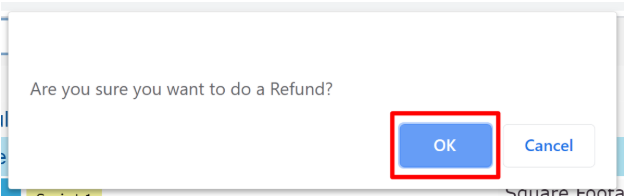
The system will ask you to confirm the Refund. Click the OK button to continue.
You will now see the Refund appearing in the Transaction List.

Was this article helpful?
That’s Great!
Thank you for your feedback
Sorry! We couldn't be helpful
Thank you for your feedback
Feedback sent
We appreciate your effort and will try to fix the article