Want to manage how many calls the dialer makes per Agent? Learn about adjusting your dialing speed below.
Managing Background Dialing Speed
The Background Dialing Speed Settings enable you to configure Dialing Plans to determine how the Dialer dials your Leads. You can adjust your Dialing Plans using the Speed Settings. To access this feature, first navigate to Leads on your Dashboard.

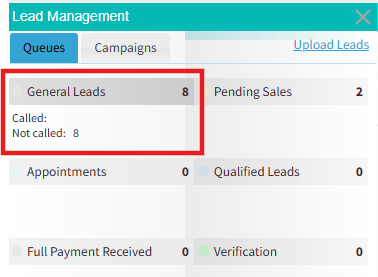
The Lead Management section will open on the left side of the screen. Click on General Leads.
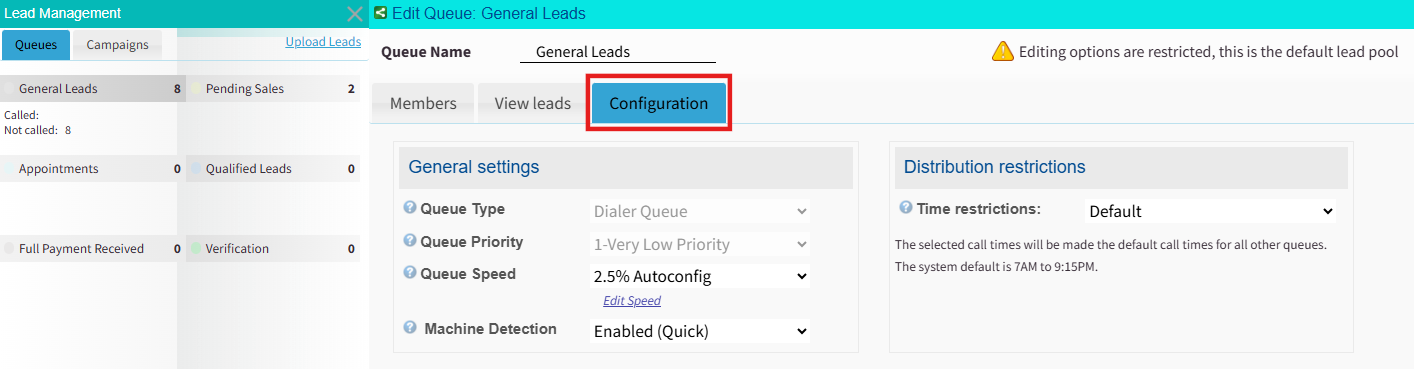
Next, click on the Configuration Tab.
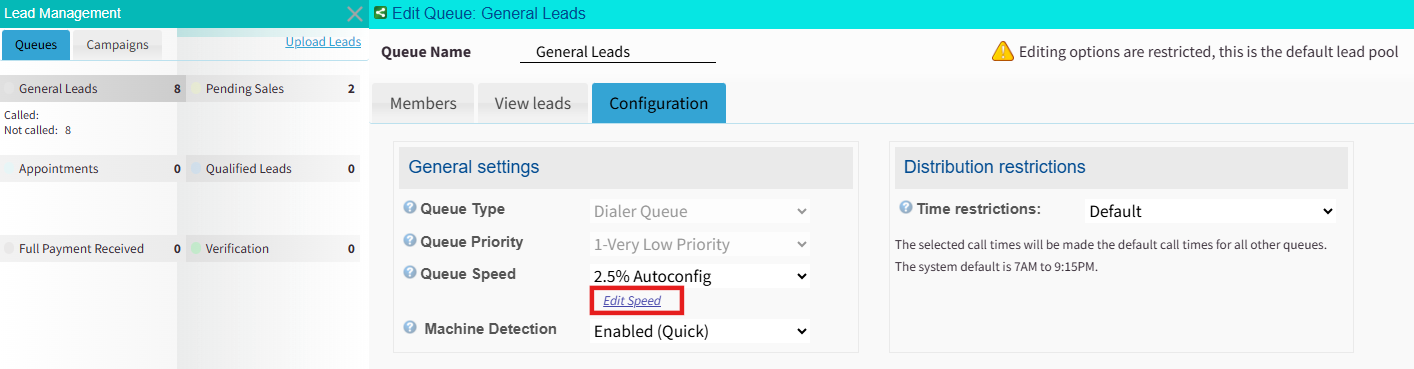
Then, click on Edit Speed.
You'll now see Dialing Plans (1) and Speed Settings (2).

Dialing Plans
Dialing Plans enable you to tell Readymode how you want to dial leads. Default Dialing Plans are pre-configured in your CRM. You can modify these Default Plans, or create new ones, using the options in Managing Dialing Plans. Once you're ready to use your plans, apply them to the Queues you are using to dial leads.
Default Dialing Plans
Most Readymode systems come pre-configured with Default Dialing Plans. Details are provided below. You can make adjustments to these Plans using Speed Settings.
2.5% Autoconfig
The 2.5% Autoconfig Plan is configured using Automatic Speed Settings to enable the Dialer to dial Leads based on the Abandon Threshold of 2.5%. The number of calls made will be adjusted automatically (1) to be as close to the Abandon Threshold (2) as possible, so it will vary depending on how many Agents are available and how many calls to connect are required.

Aggressive (Manual)
The Aggressive (Manual) Plan is configured using Manual Speed Settings to strictly dial Leads in a ratio of 3 calls for every 1 available Agent. The Abandon Rate will vary according to how many calls to connect are required.

Managing Dialing Plans
These Management Options enable you to manage your existing Dialing Plans and create new ones.
- Dialing Plan drop-down menu (1) - Use this menu to select and review the configuration of an existing Dialing Plan.
- New Plan button (2) - Use this button to create a new Dialing Plan based on the current one.
- Save Changes button (3) - Use this button to save changes to the current Dialing Plan.
- Delete Plan button (4) - Use this button to delete the current Dialing Plan.

Applying Dialing Plans to a Queue
Once configured, put a Dialing Plan into action by selecting it on your Dialer Queues using the Queue Speed Setting.
Speed Settings
Readymode offers you the option to use either Automatic (1) or Manual Speed Settings (2) in your Dialing Plans. While most clients use Automatic, Manual may be preferable for clients who are only dialing a few hours per day or who wish to dial according to a specific CPA (Calls per Agent) ratio.

To adjust Speed Settings, first select or create a Dialing Plan (1), adjust your Settings using the Automatic or Manual Settings, and click Save Changes (2) when done.

Automatic Speed Settings
Using the Automatic Speed Settings, you can set targets for the Dialer based on the Abandon Threshold.

Enable Automatic Speed
When you check the Enable Automatic Speed checkbox, the Dialer will start off by using your Manual Speed Settings for the first few calls, then adjust automatically based on the Abandon Threshold target you've set.

Abandon Threshold
An abandoned call occurs when the Dialer connects with a Lead, but no Agent is available to take the call. Generally speaking, most companies strive to find a balance between abandoning calls and ensuring enough calls are being made to maintain Agent productivity.
The Abandon Threshold field represents the percentage of abandoned calls you find acceptable. The Dialer will use this as a target, and try to avoid going over this number when dialing. The default setting is 2.5%, but you can change this to whatever you wish.
Note: The industry standard Abandon Threshold is 2.5%.

Threshold Settings
Using the Threshold Settings, you can tell the Dialer what action to take when it approaches or exceeds the Abandon Threshold.

Manual Speed Settings
Using the Manual Speed Settings, you can set targets for the AI Dialer based on the number of calls per Agent (CPA).

The default CPA is 3 (3 calls for every 1 Agent). You can adjust the CPA using the Sliders.

If you would like to set different CPA targets depending on how many Agents are available, use the + Add button to add new Sliders. Use the x Remove button to remove any Sliders you don't need.

Was this article helpful?
That’s Great!
Thank you for your feedback
Sorry! We couldn't be helpful
Thank you for your feedback
Feedback sent
We appreciate your effort and will try to fix the article