Looking for a quick way to organize your Call Results? Try Categories!
Using Call Result Categories
Call Result Categories are a handy way to group multiple Call Results together.
In the example below, we've grouped multiple "Appointment" Call Results under a single "Appointments" Category.

Creating Categories
You can either create a new Category from scratch, or convert an existing Call Result into a Category.
Create a New Category
To create a new Category, navigate to Call Results and click the New result category link.

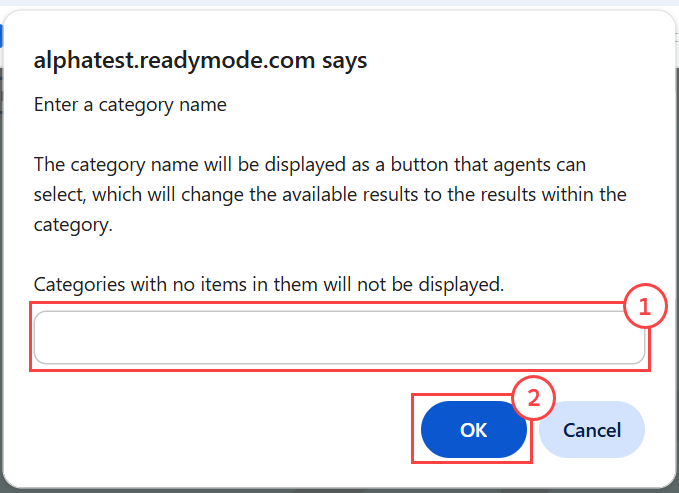
You'll see a popup appear to enable you to enter a name in the Category Name field (1). Click the OK button (2) to continue.
You'll see your new Category appear in the Active Call Results section.

Convert a Call Result into a Category
To convert an existing Call Result into a Category, open the Call Result to access Configuration Options and click on the Category drop-down menu (1). Select Make this a category (2) from the menu and click the Save Changes button (3).

You'll now see your converted Category under the Active Call Results section.

Configuring Categories
When you open a Category, you'll see the Call Result that represents the Category. Click on the Call Result to access Configuration Options.
Quick Tip: Default Rule can be used to modify the functionality of Call Result Categories. If a Default Rule is set for a Category, the Category will function as a Call Result and can be used to disposition a Lead. If no Default Rule is set, the Category cannot be used to disposition a call, and the Agent will need to select one of the Call Results inside the Category instead.

Adding Call Results to Categories
Once you create Categories, you can group Call Results under them using one of the following methods:
Create a Call Result within a Category
To create Call Results within a Category, click on the Category to open it and select the New call result code link.

Set up your Call Result using the Configuration Options (1). When you're done, click the Save Changes button (2).

You'll now see your new Call Result appear within the Category.

Assign a Call Result to a Category
To assign a Call Result to a Category, open the Call Result to access Configuration Options and click on the Category drop-down menu (1). Select the desired Category (2) from the menu and click the Save Changes button (3).

You'll now see your Call Result appearing under the selected Category:

Was this article helpful?
That’s Great!
Thank you for your feedback
Sorry! We couldn't be helpful
Thank you for your feedback
Feedback sent
We appreciate your effort and will try to fix the article